Know your bike, downto the individual component.
Personalized usage and wear tracking for each component to know exactly when it's time to charge, service or replace a part on your bike.


Works with




Sync automatically from Strava, Garmin, Hammerhead, and Wahoo.
“Low battery notifications! Love this!”
— Chris B.
“Auto bike matching and updating Strava is my favourite feature!”
— Ela G.
Stop guessing. Start knowing.
Componentry is a maintenance and tracking app that transforms how you care for your bicycle.
Zero manual logging
Your rides automatically update every component's usage. Just ride and forget about logging.
Never be caught off-guard
Get notified before a worn chain damages your cassette or a dead battery ruins your race.
All your bikes, one place
Road bike, gravel rig, trainer — see every component's health across your entire stable.
Reminders that fit you
Schedule maintenance around your riding patterns, not generic manufacturer timelines.
Your perfect position, saved
Store and compare bike fit measurements across all your bikes. Never lose your setup after a bike fit.
Predictions built from your riding
See when each component will run out based on the way you actually ride — terrain, power, and weather, not a generic average.
Unlock more from your bike. Keep you, your bike and all components running at peak performance.
All the critical details
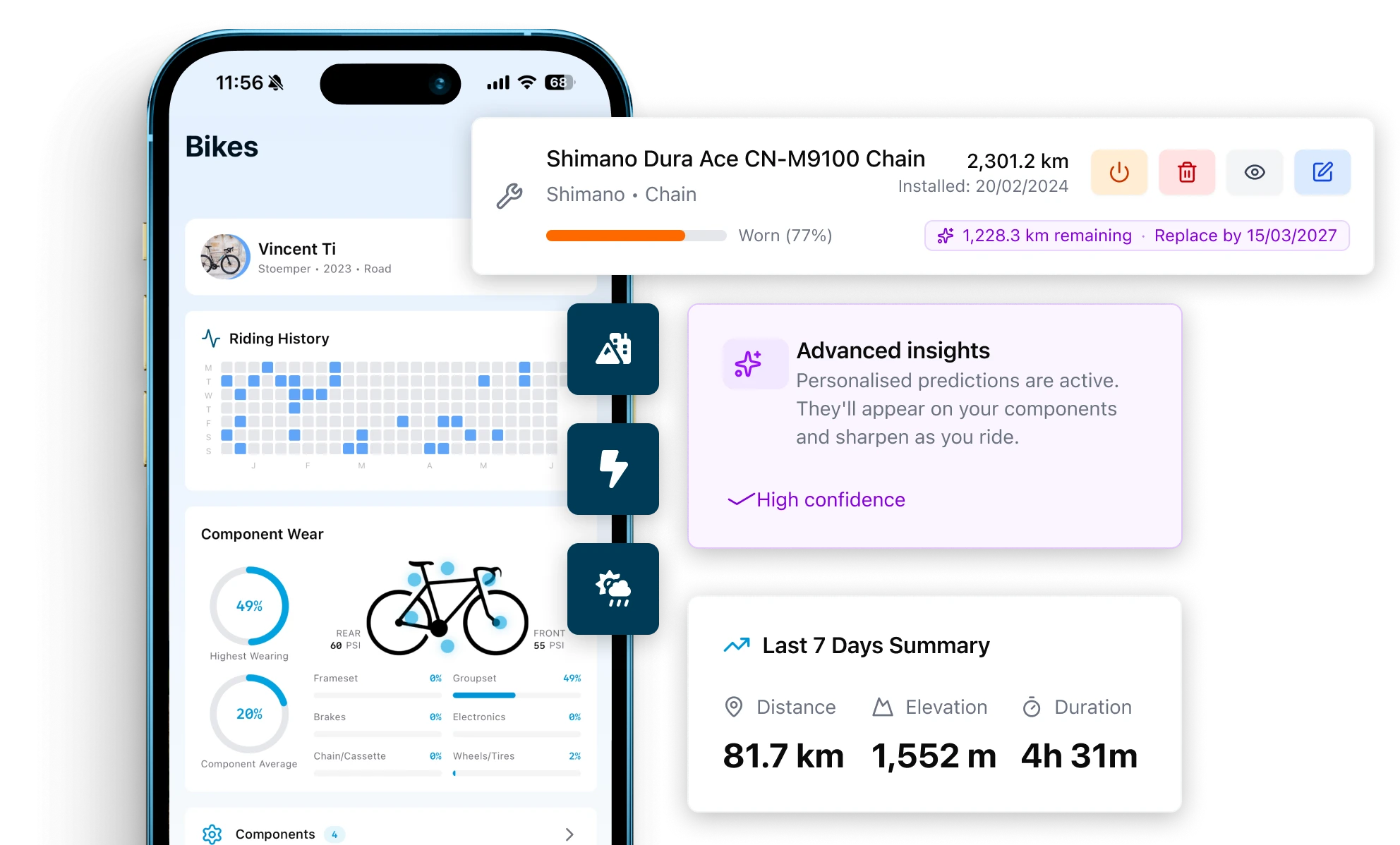
Componentry calculates and understands how each component is wearing compared to your overall bike.
Helpful reminders
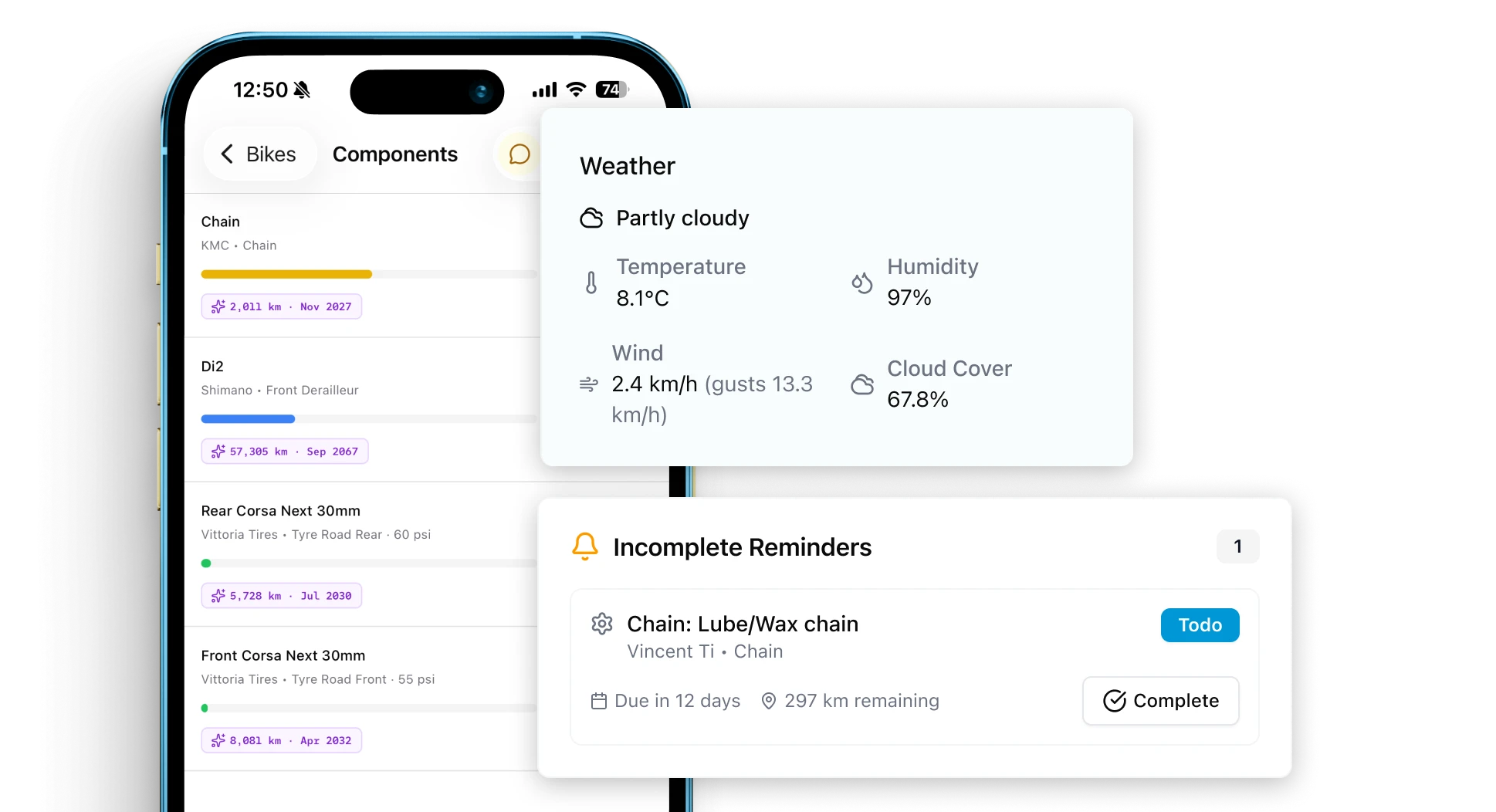
Set reminders around your riding patterns — not generic manufacturer timelines.Replace a $30 chain before it destroys your $200 cassette.
Important notifications
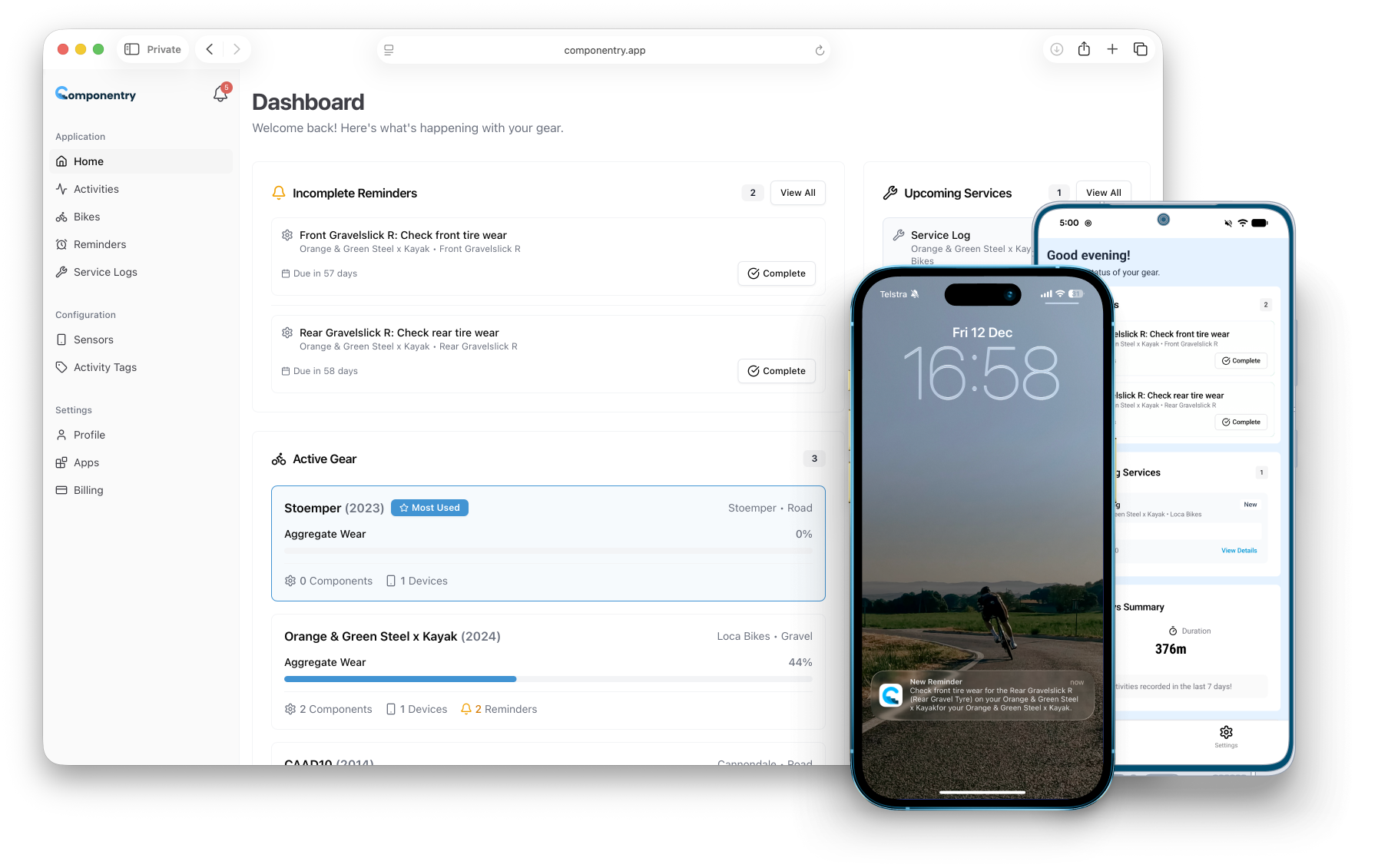
Automatic alerts when components hit their service threshold.Set additional reminders for the bikes and parts that matter most.
Automatically sync your activities
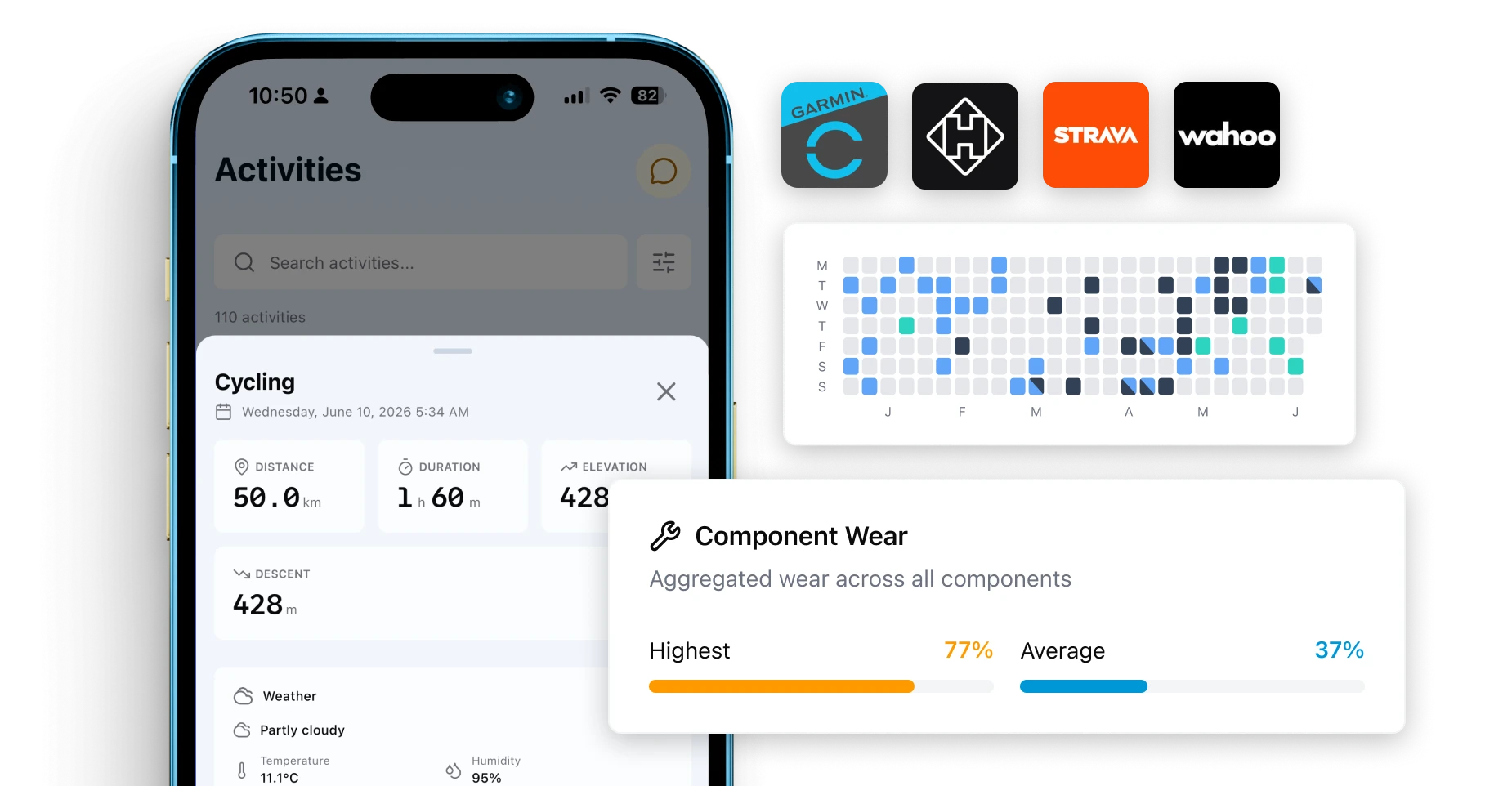
Connect Strava, Garmin, Wahoo, or Hammerhead and every ride updates your components in real-time. Bike assignments sync back to Strava too — no manual effort.
Bike overview & activity summary
See a snapshot of your bike (or bikes) and a summary after each ride to know what needs a charge and the wear across each bike.
Wear & usage
Track every component by distance, duration, and calendar time — not just rough mileage. Weather data tags each ride so you can see how conditions affect wear.Get notified when something needs attention before it fails on a ride.
Predictions that know how you ride. Componentry reads your terrain, power, and weather to tell you exactly when each component runs out — on your bike, based on your riding.
Your distance, your wear
See replacement dates based on how you actually ride, not generic averages. The same distance in the hills wears a drivetrain differently to the flat — and your predictions finally reflect that.
Know what's multiplying your wear
Every prediction breaks down why — climbing, power, descending, weather, volume.See what's driving wear so you can act on it, or just budget for it.
Show up race-ready
See every component's projected state on race day, and exactly what to replace before the gun goes.Training plan modifiers cover build blocks and tapers.
Your data, privacy first.
We believe your riding data is personal. Componentry is built from the ground up to keep it that way.
We never sell your data
Your personal information is yours alone — we will never sell, trade, or monetise it. Full stop.
Private and safe by design
We take great care securing everything you share with us, from ride data to account details.
Enrichment stays anonymous
When we enrich your data — like adding weather context — your personal information is never passed to third parties.
We charge, not track
A small subscription fee lets us stay privacy-focused. We have no reason to sell your data because we don't rely on it.
Get started for free. No credit card required.
Simple pricing, that's all.
Componentry is a companion app for your bike, simple as that, so we keep pricing simple.
Ask AI about Componentry
Ask ChatGPT, Claude, Grok, or Perplexity how Componentry can help you track your bike.
Ask ChatGPT, Claude, Grok, or Perplexity how Componentry can help you track your bike.


