Finding, Editing and Deleting Reminders
Search and filter your reminders, see a reminder's full schedule, change it, or delete it.
Everything on this page happens on Reminders in the sidebar. Each reminder has five buttons: Complete (or Undo), pause (or resume), view details, edit and delete.
Find a Reminder
- Search matches reminder names, bike names and component names. Type "chain" to find every chain reminder across your bikes.
- Filter by bike: the button next to the search box starts on All bikes. Pick a bike and the page shows only its reminders, with a count such as "Showing 7 reminders for Vincent Ti". Choose All bikes again to clear it.
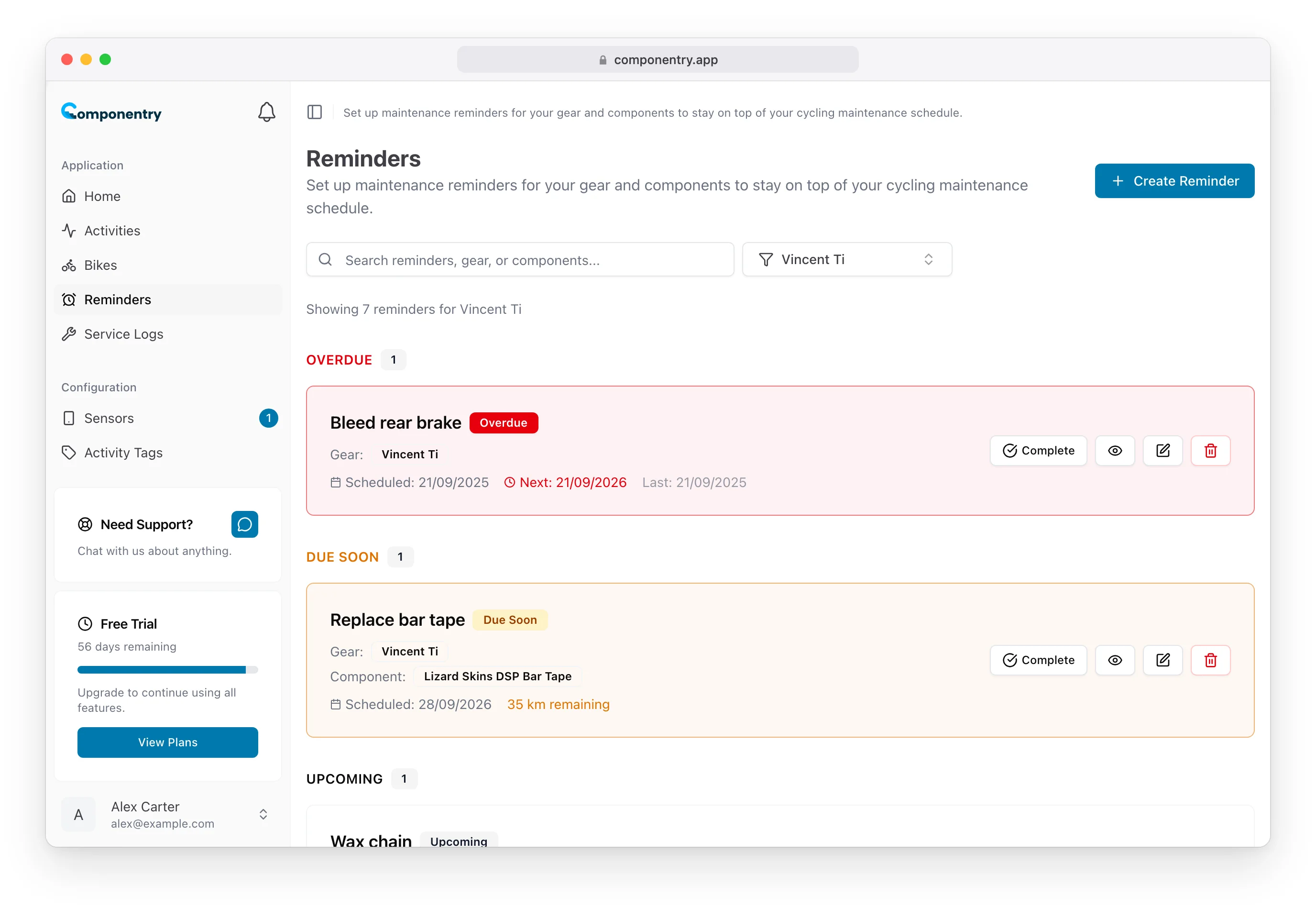
The bike filter shows reminders that belong to that bike, including reminders on its components. Reminders that aren't linked to any bike only show under All bikes.
See a Reminder's Details
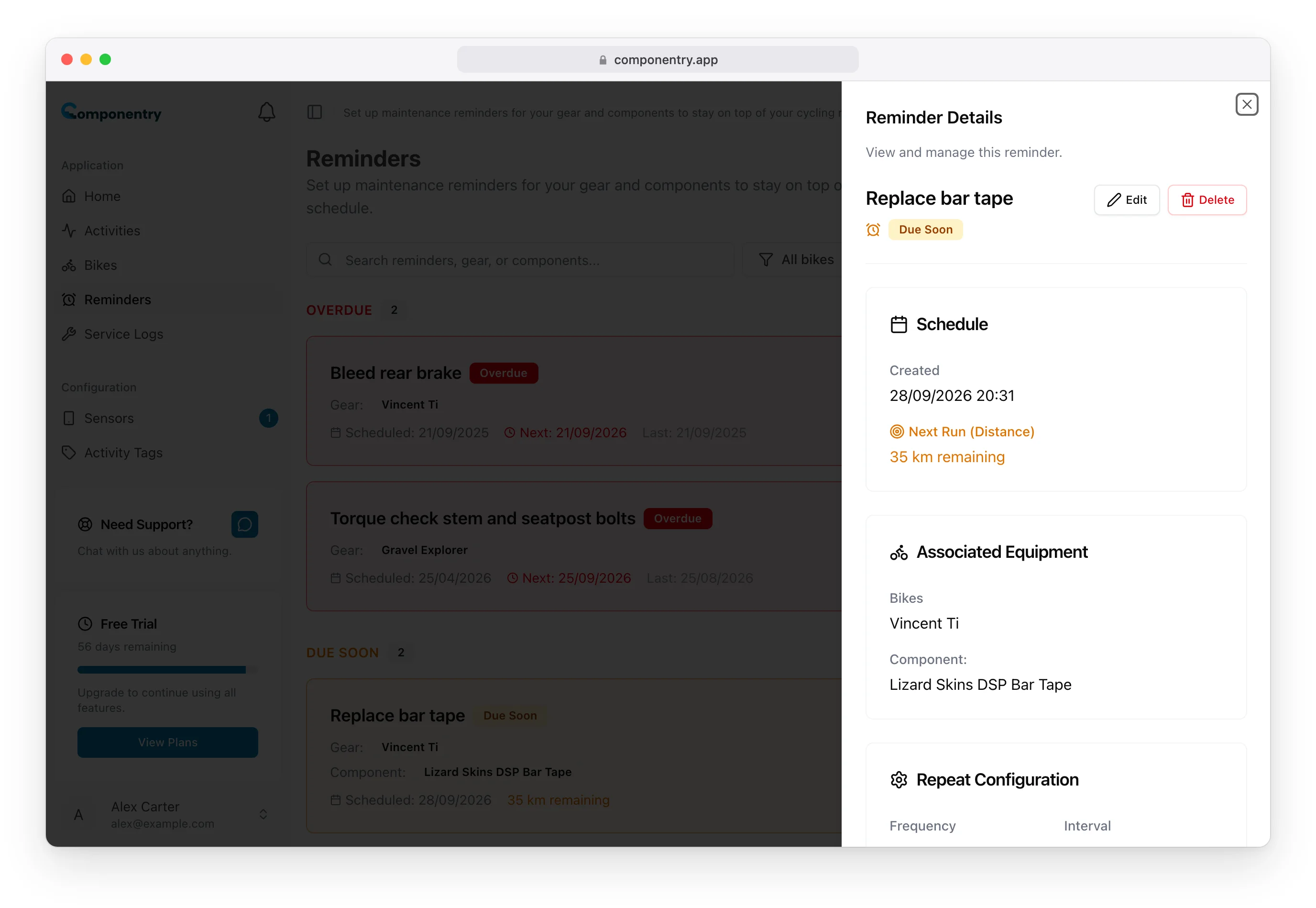
Select the eye button to open Reminder Details. It shows:
- Schedule: when it was created and the next due point for each rule (date, distance remaining, rides so far)
- Associated Equipment: the bike and component it belongs to
- Repeat Configuration: only the rules the reminder has, such as its frequency, distance interval or activity interval. A distance-only reminder shows just its distance interval.
- Completion: whether it is still waiting to be done or already done for this cycle
Pause a Reminder
Pause a reminder you want to keep but don't need for a while, such as a job on a bike that's off the road for the winter.
- Select the pause button on the reminder, or Pause in its details.
- The reminder is marked Paused and sits in Scheduled.
A paused reminder won't notify you or fall due until you resume it. To resume, select the play button on the reminder, or Resume in its details.
Edit a Reminder
- Select the pencil button on the reminder, or Edit in its details.
- Change the name, start date, bike, component or schedule.
- Select Update Reminder.
Saving restarts the reminder's count from now: a distance rule counts its full distance again from where the part or bike is today, and a ride count goes back to zero.
Delete a Reminder
- Select the red bin button on the reminder, or Delete in its details.
- Select Delete in the Delete Reminder dialog to confirm.
Deleting can't be undone. Services and maintenance checks that already completed the reminder keep their record of it, so your service history stays intact.
You don't need to delete reminders when you replace or retire a part in a service log: they move to the new part or are cleared automatically. See Reminders on bikes and components.