Using Bike Fit Measurements
Learn how to record, edit, and compare bike fit measurements in Componentry.
This guide walks you through the complete process of using Bike Fit Measurements in Componentry - from recording your first measurement set to comparing versions and tracking changes over time.
Accessing Bike Fit
There are two ways to access the Bike Fit page for any of your bikes:
From the Gear List
On the main Gear page, each bike card displays a Ruler icon button. Click this button to go directly to that bike's Bike Fit page.
[Screenshot placeholder: Gear list showing bike card with Ruler icon button highlighted]
From the Gear Detail Page
When viewing a specific bike, you'll find a Fit button in the header row next to the Settings button. Click this to access the Bike Fit page.
[Screenshot placeholder: Gear detail header showing Fit button next to Settings button]
Recording Your First Measurement
Opening the Measurement Form
Click the "New Measurement" button to open the measurement form. If you haven't recorded any measurements yet, you'll see an empty state with a prompt to record your first measurement.
[Screenshot placeholder: Empty state with "Record First Measurement" button]
Setting the Fit Date
The fit date is when the measurements were taken - not when you're entering them into Componentry. This is important for accurate historical tracking. Select the date using the date picker at the top of the form.
Adding Name and Notes
Give your measurement set a descriptive name to identify it later. Examples:
- "Initial Setup"
- "Post-Fit Session - March 2026"
- "Winter Training Position"
- "Race Day Configuration"
Use the notes field to record any relevant context:
- Who performed the fit
- Conditions or goals for this setup
- Equipment used (specific saddle, pedals, etc.)
- Any observations or feelings about the position
[Screenshot placeholder: Measurement form header showing date picker, name field, and notes field]
Entering Measurements
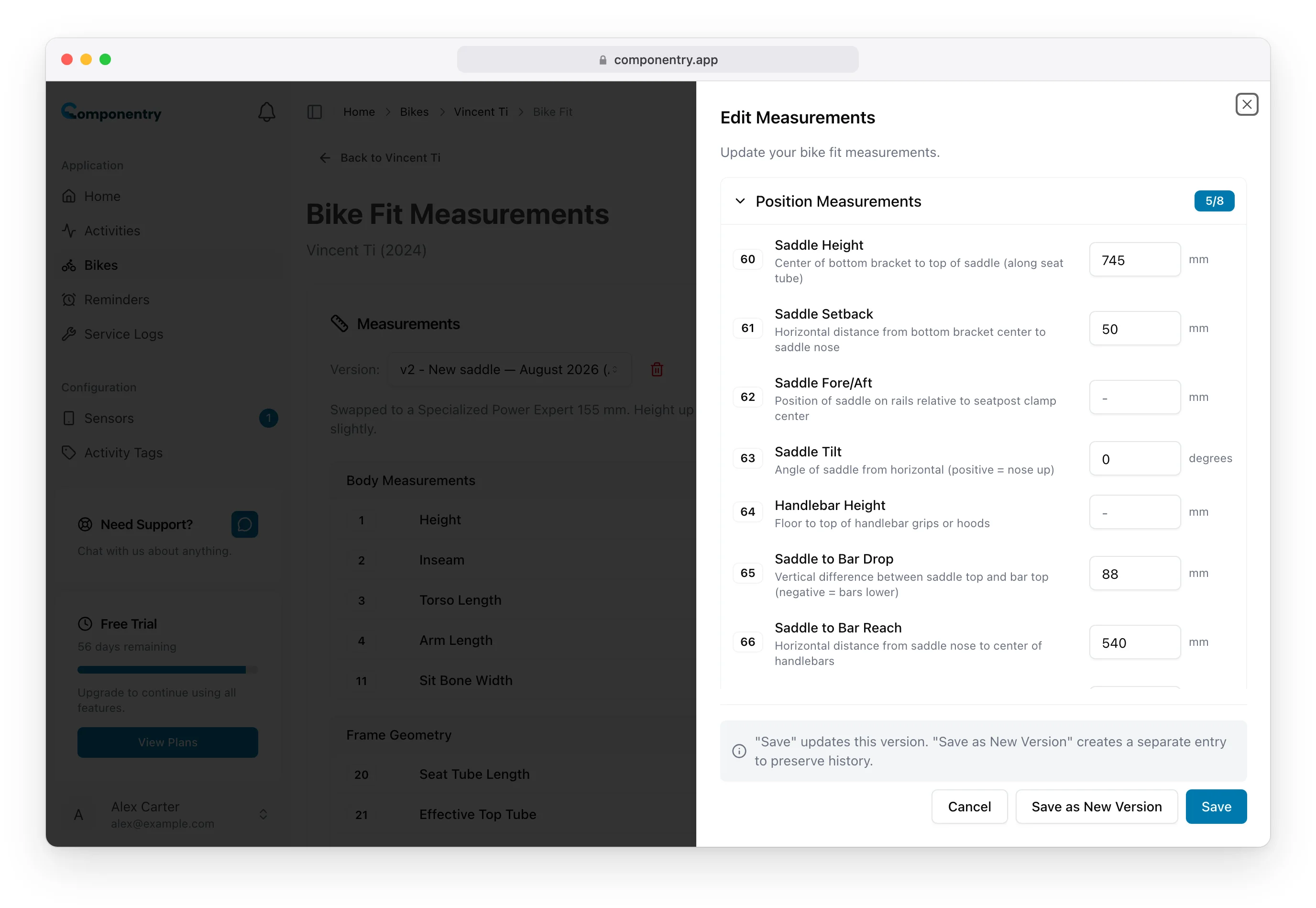
The form organizes measurements into six collapsible categories. Click any category header to expand it and reveal the measurement fields.
Category Badges Each category header displays a badge showing how many measurements are filled (e.g., "3/8"). This helps you track your progress and see which categories have data.
Measurement Fields Each measurement shows:
- A reference code badge (e.g., "SH" for Saddle Height)
- The measurement name
- A brief description of what to measure
- An input field for the value
- The unit of measurement
Partial Measurements You don't need to fill in every field. Only enter measurements you actually have. Empty fields are simply omitted from your saved record. You can always come back and add more measurements later.
[Screenshot placeholder: Expanded Saddle category showing measurement fields with some values filled in]
Saving Your Measurements
Once you've entered your measurements, click "Save Measurements" at the bottom of the form. Your measurement set is saved as version 1 and becomes immediately visible on the Bike Fit page.
Editing Measurements
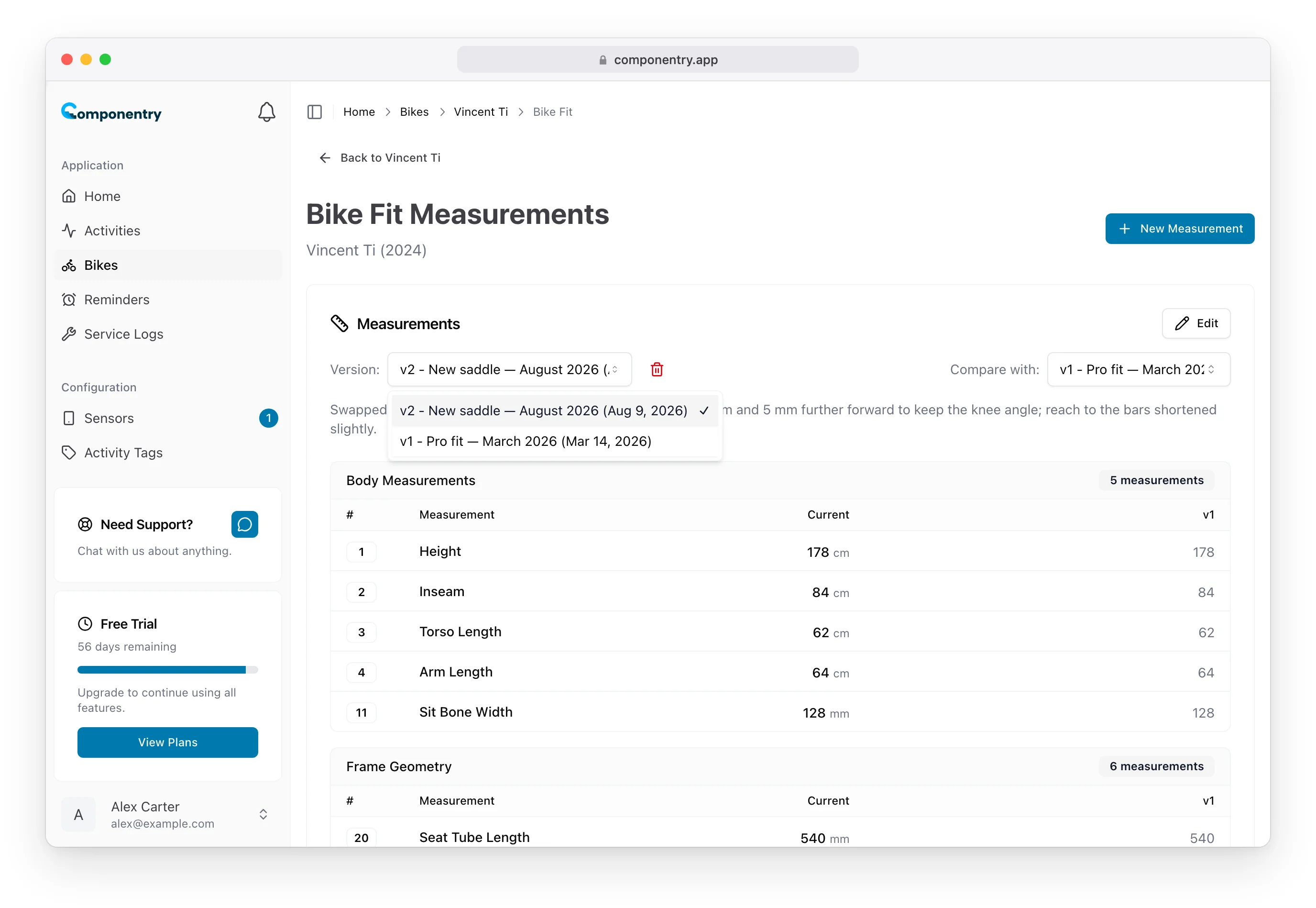
To edit an existing measurement set, first select it using the version dropdown, then click the "Edit" button.
Understanding Save Options
When editing, you have two options for saving your changes:
Save (Primary Button) Updates the current version in-place. The existing record is modified with your changes. Use this for:
- Correcting typos or errors
- Adding measurements you missed initially
- Updating notes or the name
- Fixing incorrect values
Save as New Version (Secondary Button) Creates a new version entry while preserving the original. Use this for:
- Recording measurements after a new fit session
- Documenting adjustments you want to track
- Preserving history before making experimental changes
- Creating a new baseline after significant modifications
[Screenshot placeholder: Edit form footer showing info message, Cancel, Save as New Version, and Save buttons]
The Info Message
When editing, an info message appears above the buttons explaining the difference:
"Save" updates this version. "Save as New Version" creates a separate entry to preserve history.
This helps you make an informed choice about which action is appropriate for your situation.
When to Use Each Option
| Scenario | Recommended Action |
|---|---|
| Fixing a measurement error | Save |
| Adding forgotten measurements | Save |
| After a professional bike fit | Save as New Version |
| After adjusting your saddle height | Save as New Version |
| Correcting a typo in notes | Save |
| Documenting a new position to try | Save as New Version |
Comparing Versions
The comparison feature lets you see differences between two measurement sets side-by-side.
Selecting Versions to Compare
- Primary Version: Use the main version dropdown to select the version you want to view
- Comparison Version: Click "Compare with..." and select a second version from the dropdown
[Screenshot placeholder: Version selector showing primary version selected and comparison dropdown open]
Understanding the Comparison View
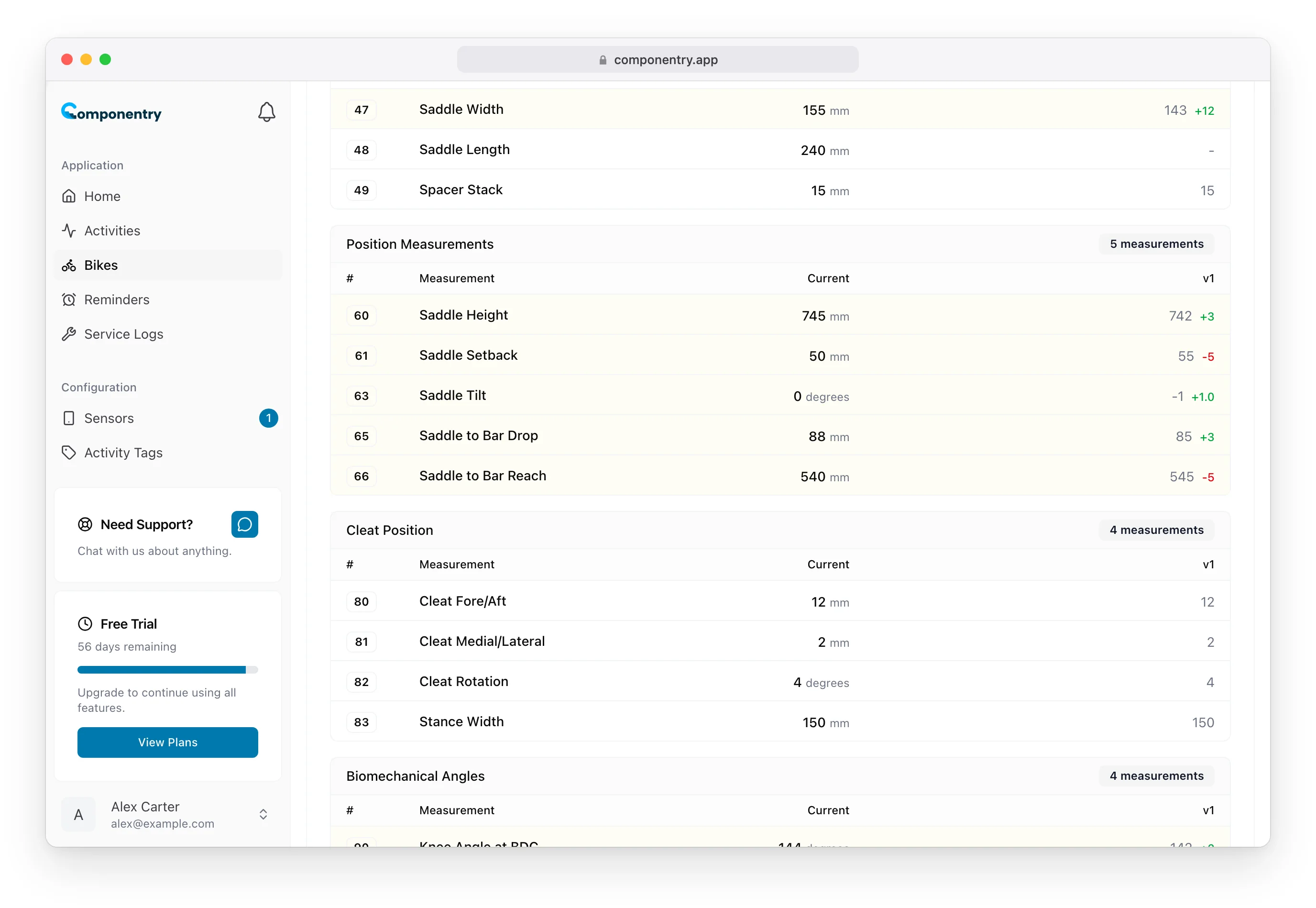
When comparison mode is active:
- Both versions' values are displayed for each measurement
- Differences are highlighted to draw attention to changes
- The version labels (e.g., "v1", "v2") identify which value belongs to which version
This makes it easy to see exactly what changed between fit sessions or adjustments.
[Screenshot placeholder: Measurement display in comparison mode showing differences highlighted]
Clearing the Comparison
To exit comparison mode and return to viewing a single version, click the clear button next to the comparison version selector.
Deleting Versions
You can delete any measurement version you no longer need.
How to Delete
- Select the version you want to delete using the version dropdown
- Click the delete button (trash icon) in the version selector
- Confirm the deletion when prompted
Important Notes
- Deleting a version is permanent and cannot be undone
- Version numbers are not renumbered after deletion
- You can delete any version, including the last remaining one
- If you delete the currently selected version, the view will switch to the next available version
[Screenshot placeholder: Version selector with delete button visible]
Tips for Accurate Measurements
Consistency is Key
For meaningful comparisons over time, take measurements under consistent conditions:
- Same tire pressure
- Same shoes and cleats
- Bike on level ground
- Same measurement tools and techniques
Use Consistent Reference Points
When measuring, always use the same reference points:
- Saddle height: Center of bottom bracket to top of saddle at the center
- Reach: Consistent points on handlebar (tops, hoods, or drops)
- Setback: Plumb line from saddle tip to bottom bracket center
Record Immediately After Fits
The best time to record measurements is immediately after a professional fit or adjustment session:
- Values are fresh and accurate
- You can ask the fitter for specific measurements
- Context and reasoning are easy to remember for notes
Document the Context
Use the notes field to capture important context:
- Why changes were made
- How the position feels
- Goals for this particular setup
- Any equipment that's specific to this measurement (saddle model, cleat type, etc.)
Start Simple
You don't need to record every measurement right away. Start with the most important ones:
- Saddle height
- Saddle setback
- Handlebar reach
- Saddle-to-bar drop
Add more detailed measurements over time as you become more familiar with your setup.
[Screenshot placeholder: Completed measurement set with comprehensive data filled in]
Common Workflows
After a Professional Bike Fit
- Create a new measurement set with today's date
- Name it something like "Pro Fit - [Fitter Name] - [Date]"
- Enter all measurements provided by the fitter
- Add notes about the session, goals, and any specific recommendations
- Save as your new baseline
Experimenting with Adjustments
- Record your current setup if not already saved
- Make your adjustment
- Open the edit form for your current version
- Update the changed measurements
- Click "Save as New Version" to preserve both the before and after
- Add notes about what you changed and why
Setting Up a New Bike
- Go to your existing bike's Bike Fit page
- Note the key measurements from your preferred version
- Set up the new bike to match those measurements
- Record the new bike's measurements in its own Bike Fit section
- Use comparison to verify the positions match
Seasonal Position Changes
- Create separate versions for different setups (e.g., "Summer Race Position", "Winter Base Position")
- Use descriptive names and the fit date to identify each
- Compare versions when transitioning between seasons
- Reference previous seasons' setups when making changes