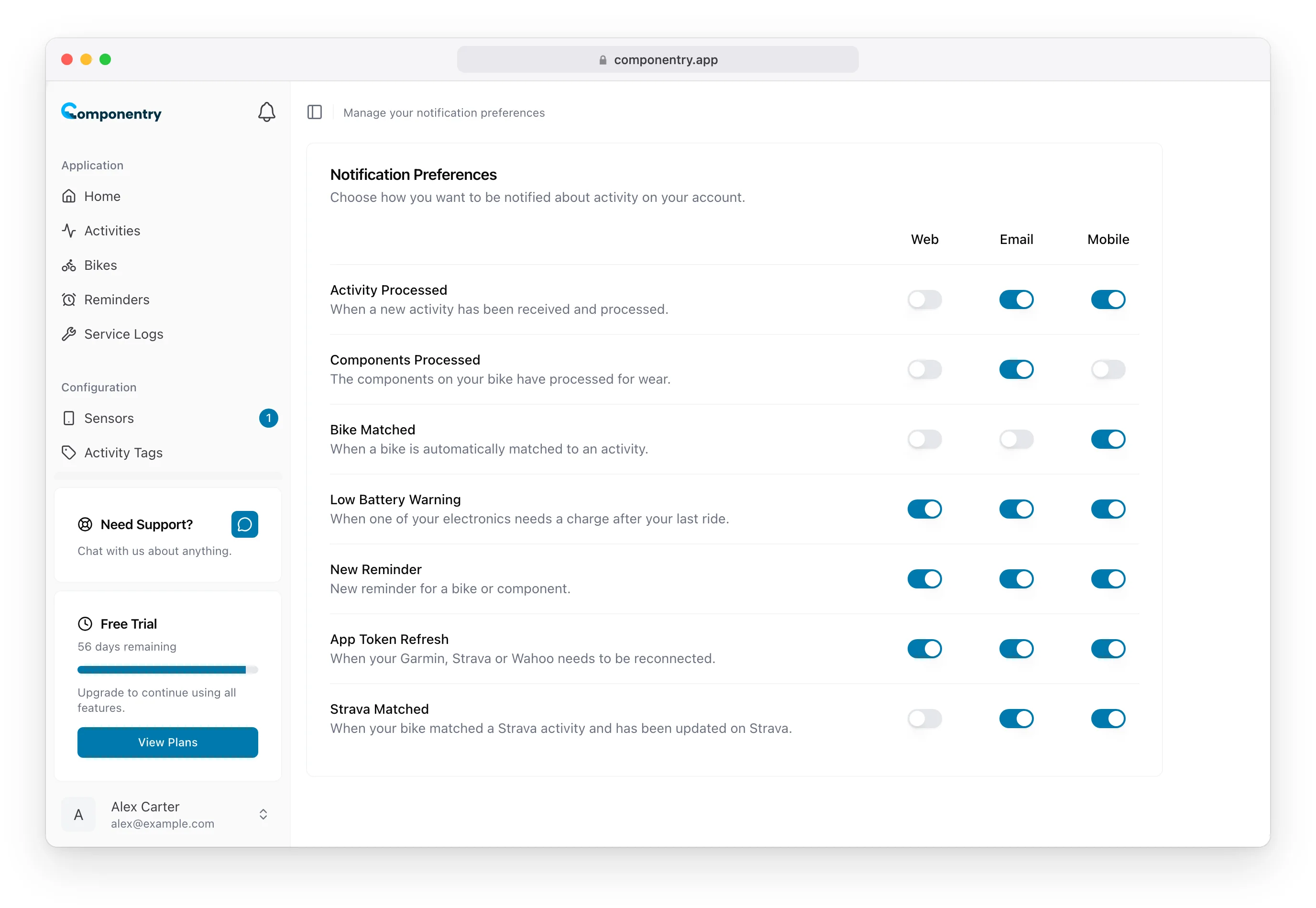
Managing Notification Preferences
Step-by-step guide to accessing and configuring your notification preferences in Componentry.
Componentry gives you complete control over your notifications. This guide walks you through accessing the notification settings and configuring each notification type for your preferred channels.
Accessing Notification Settings
From the Settings Menu
- Click on Settings in the main navigation menu
- Look under the Configuration section
- Select Notifications
Direct URL
You can also navigate directly to your notification preferences at:
/home/notifications
Understanding the Preferences Interface
The notification preferences page displays all available notification types in a list format, with toggle switches for each delivery channel.
Layout Overview
- Left side - Notification type name and description
- Right side - Three toggle switches for Web, Email, and Mobile channels

Toggle States
- Enabled (On) - You will receive this notification on this channel
- Disabled (Off) - You will not receive this notification on this channel
Configuring Your Preferences
Enabling a Notification
- Find the notification type you want to enable
- Locate the channel column (Web, Email, or Mobile)
- Click the toggle switch to turn it on
- The change saves automatically
Disabling a Notification
- Find the notification type you want to disable
- Locate the channel column you want to disable
- Click the toggle switch to turn it off
- The change saves automatically
Bulk Configuration
There is no "select all" option - each notification type must be configured individually. This ensures you make intentional choices about what notifications you receive.
Recommended Configurations
For Active Riders
If you ride frequently and want to stay informed without notification overload:
| Notification | Web | Mobile | |
|---|---|---|---|
| Activity Processed | ✓ | ✓ | |
| Components Processed | ✓ | ||
| Bike Matched | ✓ | ✓ | |
| New Reminder | ✓ | ✓ | ✓ |
| App Token Refresh | ✓ | ✓ | ✓ |
| Strava Matched | ✓ |
For Casual Riders
If you ride occasionally and prefer minimal notifications:
| Notification | Web | Mobile | |
|---|---|---|---|
| Activity Processed | ✓ | ||
| Components Processed | |||
| Bike Matched | ✓ | ||
| New Reminder | ✓ | ✓ | |
| App Token Refresh | ✓ | ✓ | |
| Strava Matched |
For Multi-Bike Owners
If you own multiple bikes and need careful tracking:
| Notification | Web | Mobile | |
|---|---|---|---|
| Activity Processed | ✓ | ✓ | |
| Components Processed | ✓ | ||
| Bike Matched | ✓ | ✓ | ✓ |
| New Reminder | ✓ | ✓ | ✓ |
| App Token Refresh | ✓ | ✓ | ✓ |
| Strava Matched | ✓ |
Channel-Specific Considerations
Web Notifications
- Appear in the notification bell in the top navigation
- Only visible when you're actively using Componentry
- Non-intrusive and don't interrupt your workflow
- Recommendation: Enable for most notification types
Email Notifications
- Delivered to your registered email address
- Visible even when you're not using the app
- Can accumulate if enabled for high-frequency notifications
- Recommendation: Enable only for important alerts (Reminders, Token Refresh)
Mobile Push Notifications
- Require the Componentry mobile app
- Delivered immediately to your device
- Most interruptive notification type
- Recommendation: Enable for time-sensitive notifications
Saving Your Preferences
All changes are saved automatically when you toggle a switch. There is no "Save" button - your preferences are updated in real-time.
If you navigate away from the page, your changes are already saved. You can verify your settings by returning to the Notifications page.