Creating a Service Log
Start a full service log for a bike, record the service details, add notes and measurements for each component, and attach the invoice.
A full service log records one service on one bike: what was done, when, who did it, what each component looked like, and the invoice. This page covers creating one and filling it in. For a quick inspection with no parts changed, use a Maintenance Check instead.
Start a service log
- Open Service Logs and choose Add Service Log.
- Under Type, choose Service Log.
- Under Select Bike, pick the bike.
- Choose Start Service. The new log opens with the status New, ready to fill in.
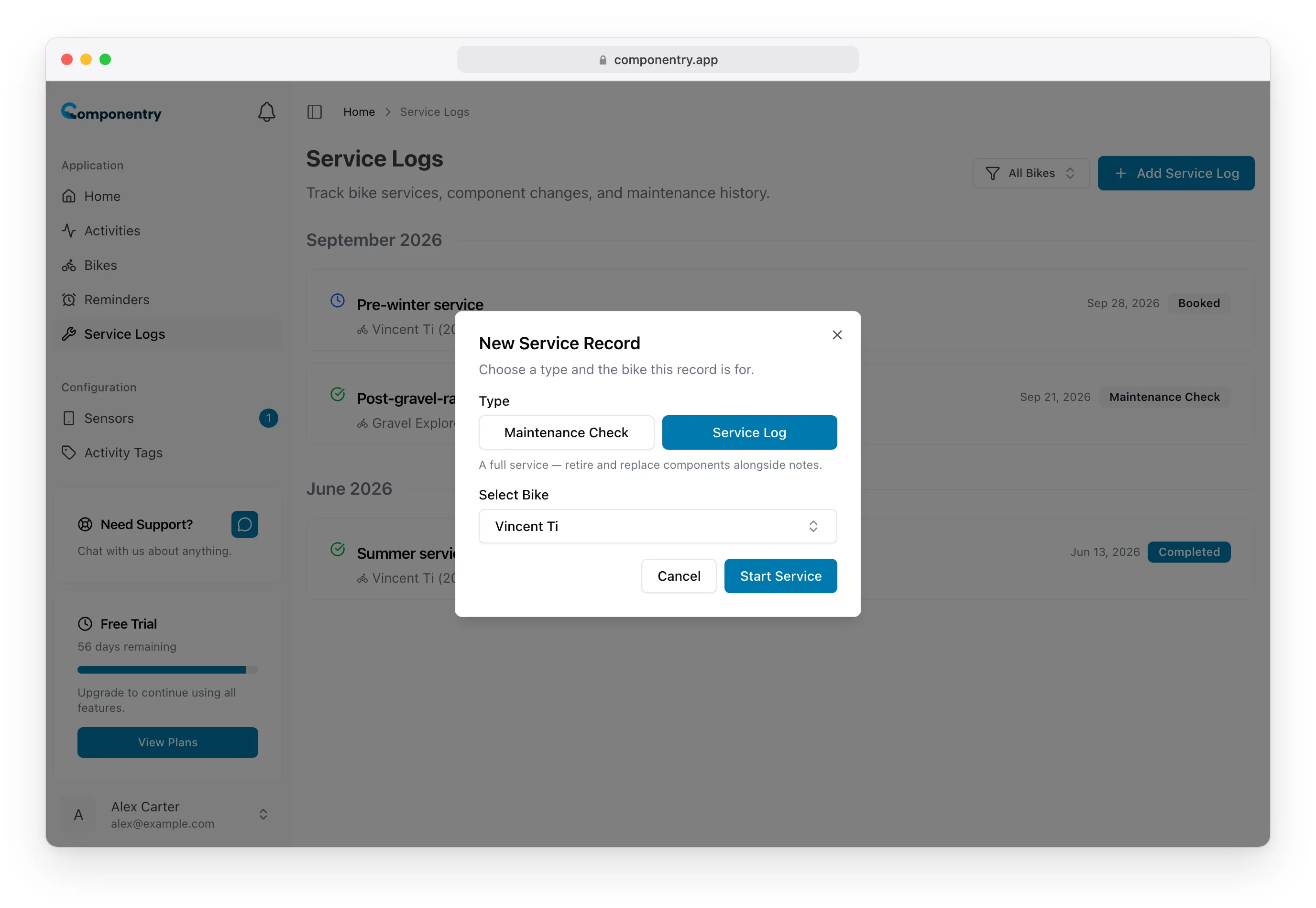
You can also arrive here from two other places:
- Retiring a component from a bike page opens this dialog with the bike and Service Log already selected, because retiring a part now always happens inside a service. See Retiring and Replacing Components.
- Completing a reminder on a bike offers to record the work as a Maintenance Check or Full Service Log. Choosing one creates the record with that reminder already ticked off. See Completing Reminders.
Fill in the service details
The Service Details card holds the record itself:
- Name: new logs are called "Service Log". Rename it to something you will recognise later, such as "Summer service: chain and rear pads".
- Notes: starts as "General service". Replace it with what was done and anything you noticed.
- Status: New, Booked or Completed. See service states.
- Crash Status: choose Crash Related if the service follows a crash. The log gets a red Crash badge in the Service Logs list and is marked "Crash-related service" under Upcoming Services, so damage repairs are easy to find later.
- Completed Date & Time and Completed By: available once Status is Completed. Back-date the service if you are logging work done earlier, and record the shop or mechanic.
Choose Save Changes to store your edits, then Done to go back to the list. Done only navigates; it does not change the status.
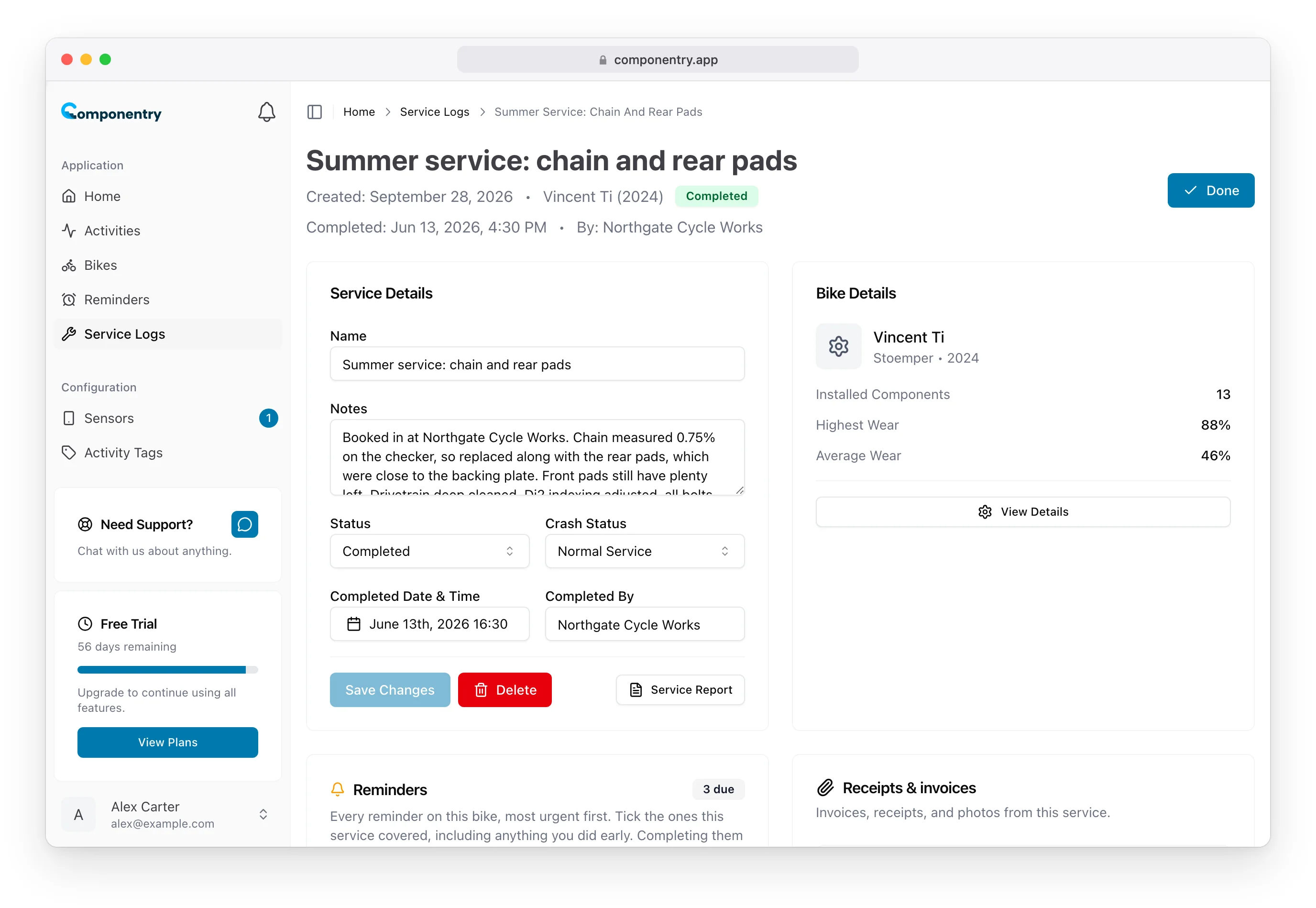
The Bike Details card shows the bike's installed component count and its highest and average wear, with View Details to jump to the bike.
Add notes and measurements to components
Every installed component on the bike is listed under Installed Components with its current wear, distance and install date. To record what you found on one:
- Choose Add service note on the component.
- Write a Note.
- Fill in any Measurements offered for that component type:
- Chain: Chain stretch, entered as a whole number straight off your chain checker (a reading of 0.67 is entered as 67), and Waxed (on for waxed, off for lubricant).
- Brake pads: Pad remaining.
- Brake rotors: Rotor remaining.
- Tires: Pressure.
- Choose Save.
The note and measurements then show on the component's card in this log. Choose Edit service note to change them, or Delete in the note dialog to remove them. A reading outside a realistic range is flagged on the field when you save.
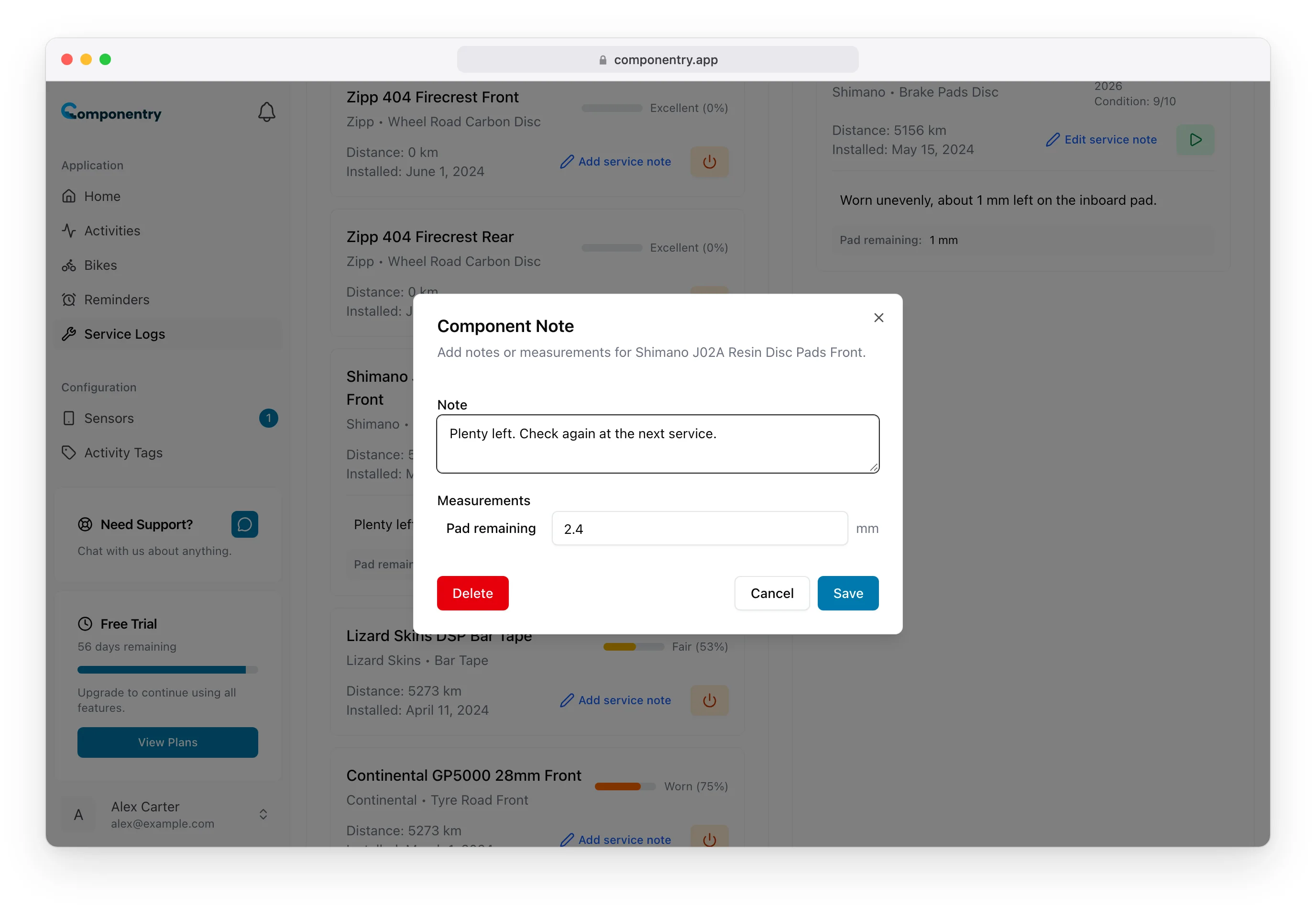
Notes belong to this service, so you can compare readings on the same part from one service or check to the next.
Attach receipts and invoices
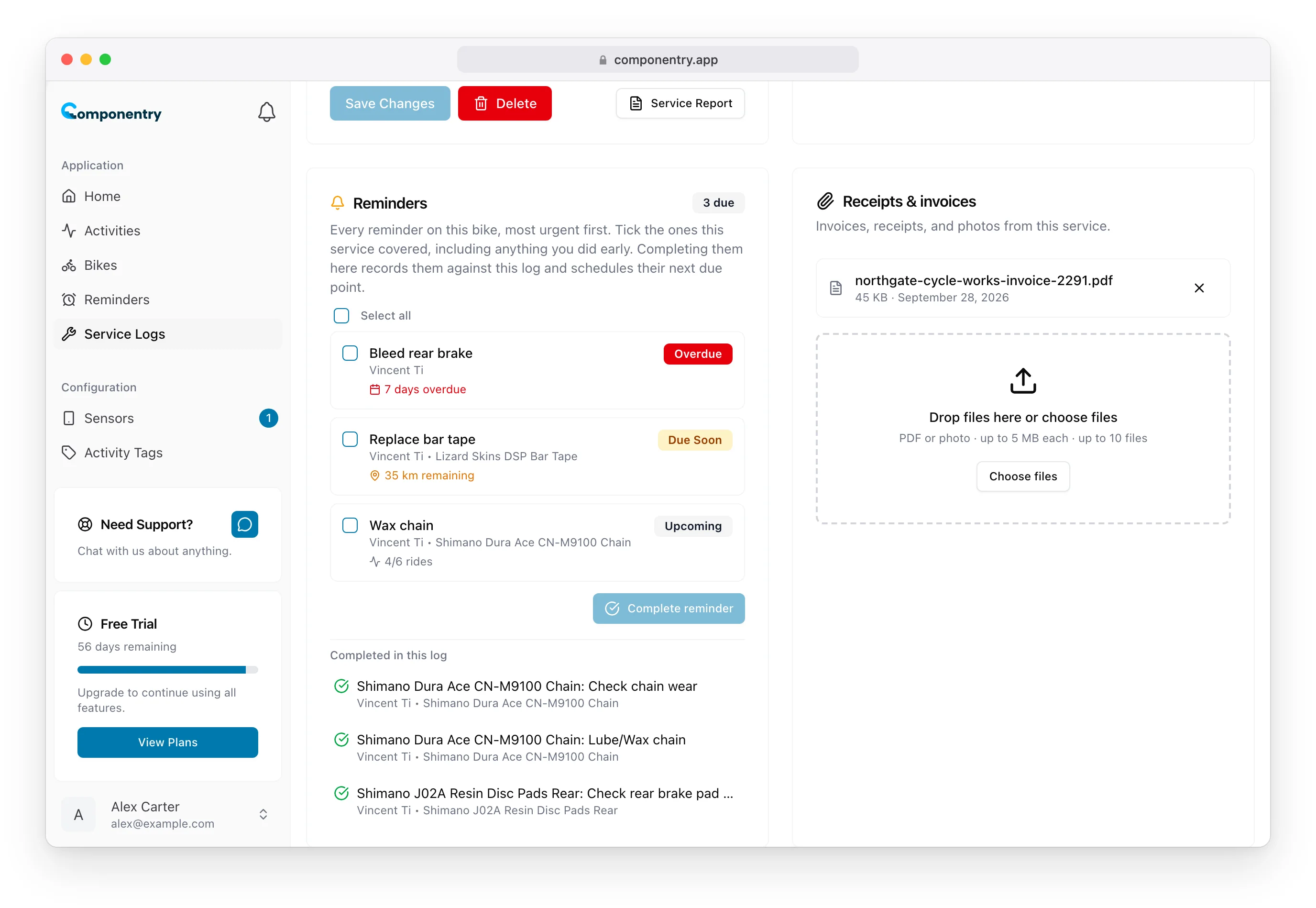
Service logs and maintenance checks have a Receipts & invoices card. Drop files onto it or choose Choose files.
- PDF, JPEG, PNG or WebP, up to 5 MB each and 10 files per service or check. Files that are too large, the wrong type or over the limit are refused with the reason.
- Click a file to open it in a new tab. Use the cross beside it to remove it.
Other things you can do from a service log
- Tick off the bike's reminders that the service covered: Completing Reminders from Service Logs.
- Retire worn parts and fit their replacements, or add a new component with Add Component: Retiring and Replacing Components.
- Email the record to your mechanic: Emailing a Service Report.
Deleting a service log
Choose Delete in Service Details and confirm. This removes the log, its component links and its attached files, and cannot be undone. Reminders it completed keep their new schedules.