Profiles and Activities
How rides get their profile, how to change it on one ride or many, and what that does to wear.
Every ride on a bike with profiles carries one profile, or none. That profile decides which of the bike's profiled components wear on the ride.
How a new ride gets its profile
First Componentry picks the bike (see Auto-matching rides to bikes). Then it gives the ride the first of these that applies:
- Sensor pin. The ride was matched through a sensor pinned to a profile.
- Activity type match. The bike has a profile tagged Indoor or Outdoor that matches the ride. Strava, Wahoo, Garmin and Hammerhead each describe rides differently; Componentry reduces them all to indoor or outdoor.
- Default profile. The bike's default profile.
- No profile.
An indoor ride that reached the bike because it's your only bike with an Indoor profile gets that Indoor profile.
This applies however the ride arrives: from a head-unit app, a FIT upload, Strava, or a Strava import.
See and change the profile on a ride
- On the Activities page, click the ride to open its details.
- Under Bikes, choose the bike if it doesn't have one. The profile below it fills in the same way as for a new ride: the Indoor or Outdoor profile that matches, otherwise the bike's default.
- Change the profile if the ride used a different setup. No profile is also an option.
- Click Save Bike.
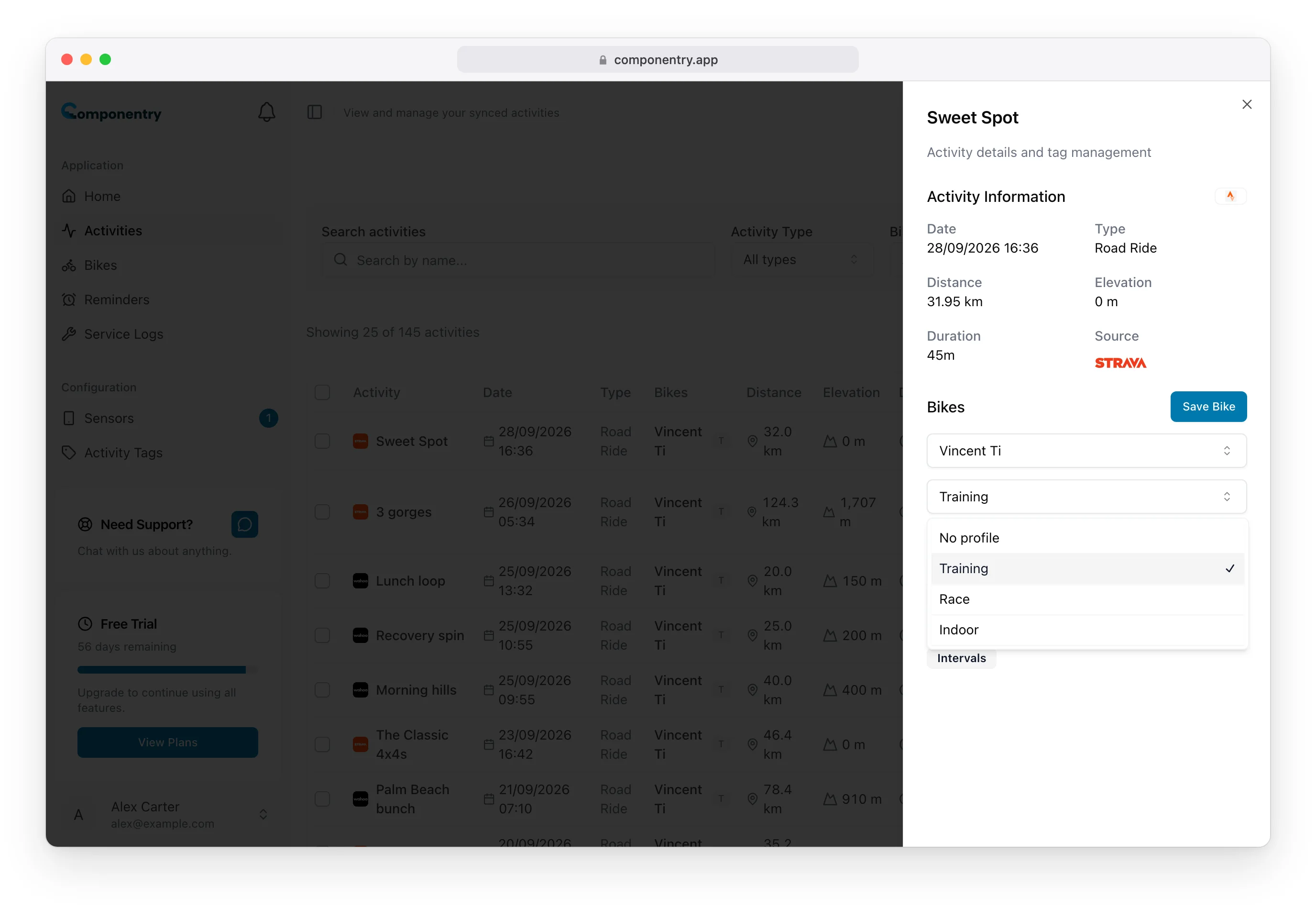
The profile list only appears for bikes that have profiles. In the activity list, the Bikes column shows the first letter of each ride's profile.
Change the profile on many rides
- On the Activities page, tick the rides.
- Click Assign Bike in the bar at the bottom and choose the bike.
- Under Profile, keep Auto (match per ride) to give each ride the profile that fits it (Indoor/Outdoor match, otherwise the default), or pick one profile for all of them. The default is marked (default).
- Click Assign to n activities.
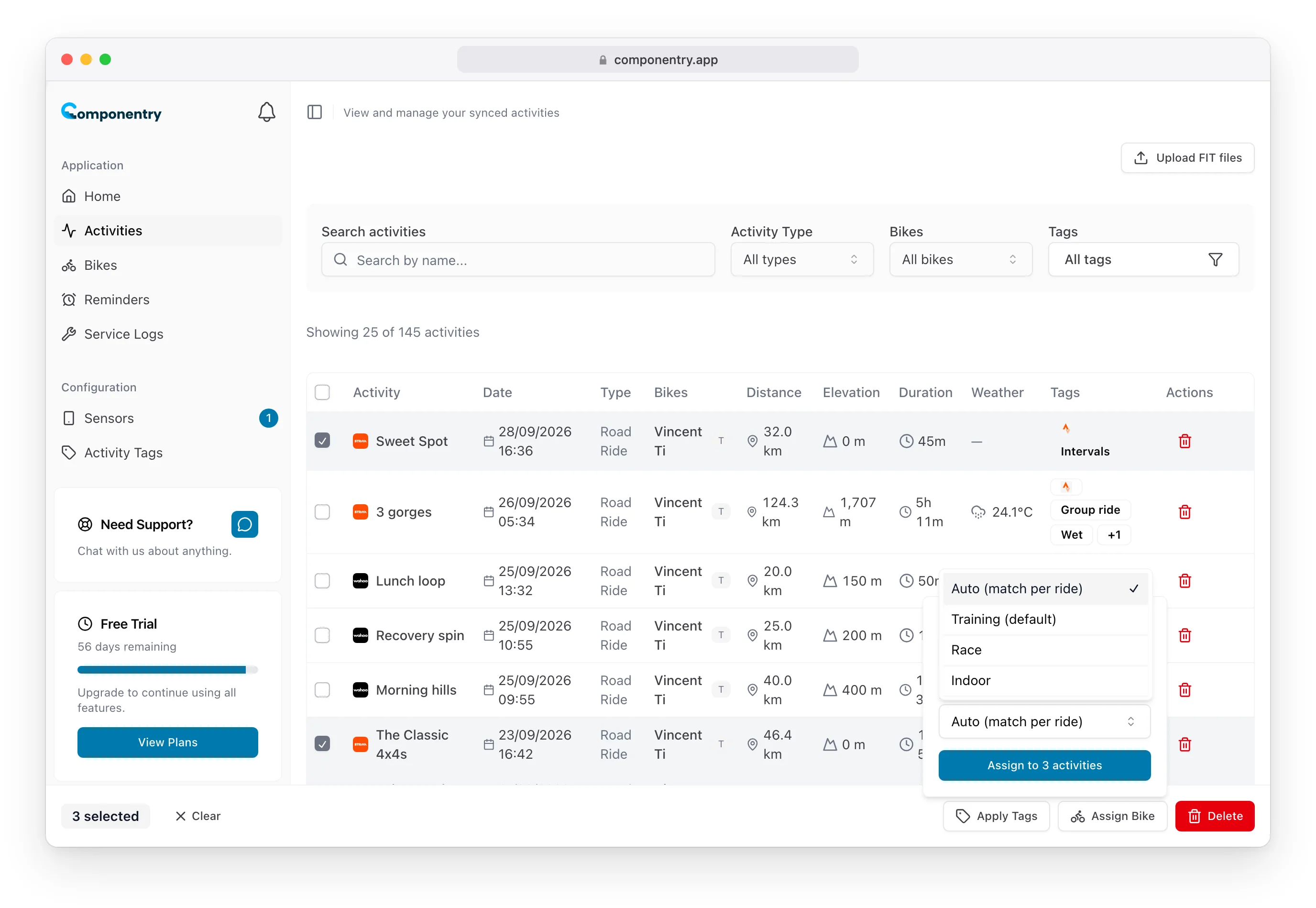
Re-assigning rides to the bike they're already on, with Auto, is a quick way to re-apply profiles after you add an Indoor or Outdoor tag. Choosing No bike clears both the bike and the profile. See Activities for more on bulk actions.
What a profile change does to wear
After you save, the bike's wear is recalculated:
- Components in the old profile stop counting the ride.
- Components in the new profile start counting it.
- Components with no profile aren't affected; they count every ride.
Rides with no profile
A ride with no profile counts for:
- components with no profile, and
- components in the bike's current default profile, since a ride without a profile is assumed to have used the default setup.
Other profiled components don't wear on it. If the bike has no default profile, only components with no profile count it. Because this follows the current default, changing the default later moves these rides' wear to the new default's components the next time wear is recalculated.
Common workflows
Swapping setups. Fit the race wheels, then set the bike's Default profile to Race before you ride. Switch it back when the training wheels go on.
Forgot to switch. Open the ride, change its profile and click Save Bike. For a week of rides, select them all and use Assign Bike with that profile.
Trainer and road on one bike. Tag one profile Indoor. Indoor rides pick it up without you touching the default.