• Features
  • Plans
  • Blog
  • FAQs
  • Help
Sign InSign Up
  • Getting started with Componentry
  • Activity Tags
    • Creating Activity Tags
    • Editing and Deleting Activity Tags
    • Hiding Activity Tags
  • Sensors
    • Strava auto-matching rides to bikes
    • Linking a Sensor to Gear
  • Reminders
    • Creating Reminders
    • Time & Duration Reminders
    • Editing & Deleting Reminders
    • Assigning Reminders to Gear & Components
    • Completing Reminders
  • Profiles
    • Creating and Managing Profiles
    • Assigning Components to Profiles
    • Profiles and Activities
  • Service Logs
    • Creating a Service Log for Gear
    • Retiring and Adding Components with Service Log Links
    • Creating and Emailing Service Reports
  • Notifications
    • Notification Types
    • Managing Notification Preferences
    • Troubleshooting Notifications
  • Bike Fit Measurements
    • Using Bike Fit Measurements
  • Predictions
    • Unlocking Predictions
    • Personalised Wear Predictions
    • Wear Factors
    • Race-Day Readiness

Linking a Sensor to Gear

Learn how to connect sensors to your bikes and components for automatic gear matching in Componentry.

Setting up auto-matching for the first time? Start with Auto-matching rides to bikes.

Linking sensors to your gear is the foundation of automatic activity matching in Componentry. By establishing these connections, you enable the system to automatically determine which bike and components were used for each activity based on the electronic sensors that recorded data during the ride.

Understanding Sensor-Gear Relationships

Primary Sensor Links

The most effective sensor links are with equipment that:

  • Stays on one bike - Power meters, bike computers permanently mounted
  • Appears in every activity - Sensors that consistently record data
  • Has unique identification - Clear serial numbers or sensor IDs
  • Rarely moves between bikes - Minimizes confusion and conflicts

Secondary Sensor Considerations

Some sensors may be:

  • Shared across bikes - Heart rate monitors, some sensors
  • Occasionally moved - Bike computers that can be transferred
  • Used for multiple sports - Sensors used for running, swimming, etc.

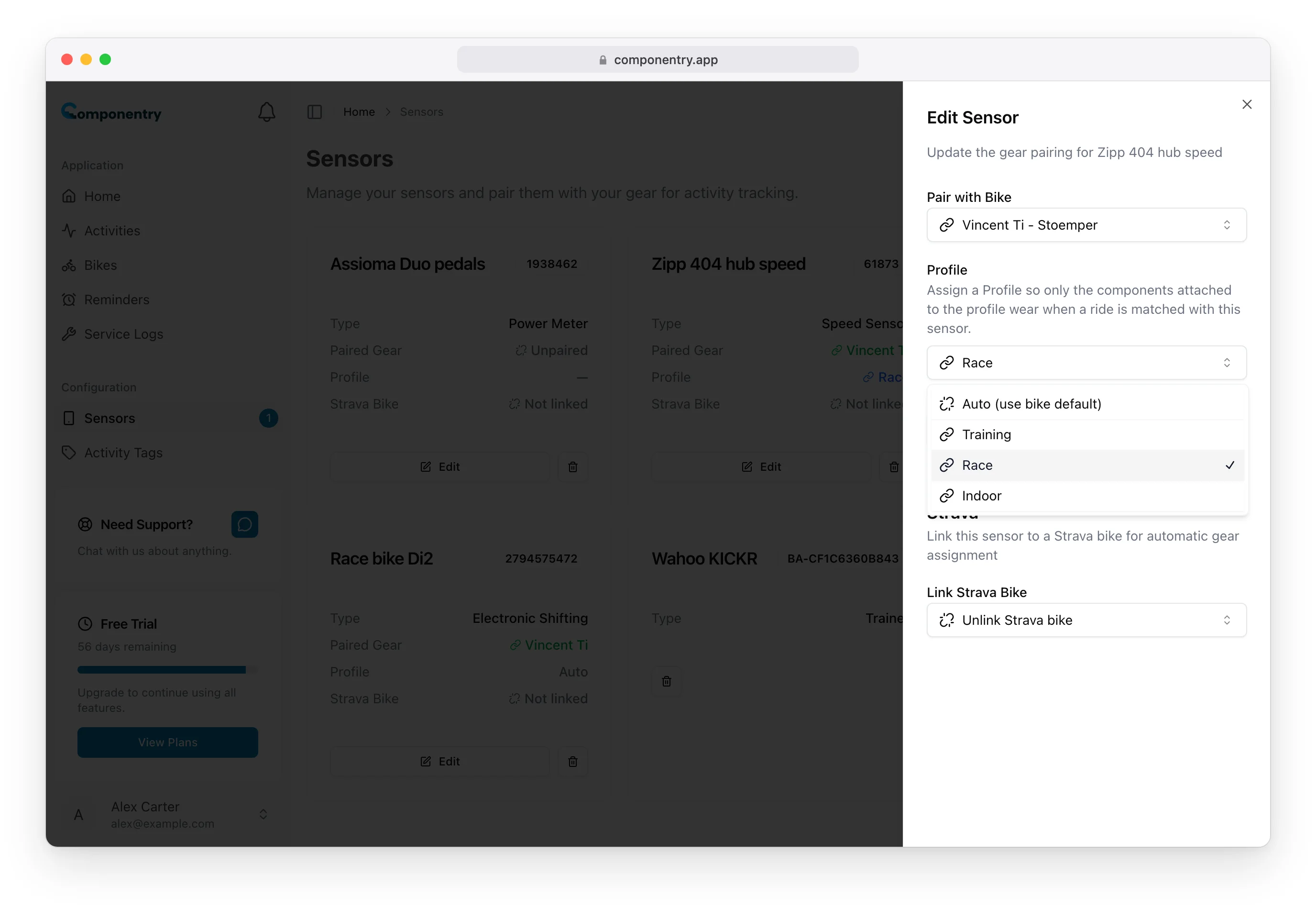
[Screenshot placeholder: Sensor management interface showing different sensor types and their link status]

Accessing Sensor Management

Navigate to Sensors

  1. From the main navigation, select Sensors
  2. You'll see a list of all discovered and manually added sensors
  3. Sensors are organized by type and show their current linking status

Sensor Information Display

Each sensor entry shows:

  • Sensor name/model - Manufacturer and model information
  • Sensor type - Power meter, heart rate monitor, etc.
  • Serial number/ID - Unique sensor identifier
  • Link status - Whether it's connected to gear
  • Last seen - When it last appeared in an activity

[Screenshot placeholder: Sensors page showing list of discovered sensors with link status indicators]

Linking Process

Step 1: Select Sensor to Link

  1. Find the sensor you want to link in the sensors list
  2. Click the "Link to Gear" button or "Edit" option
  3. The sensor linking dialog will open

Step 2: Choose Gear Type

Select what type of gear this sensor should be linked to:

Link to Bike

  • Best for: Power meters, bike computers, speed/cadence sensors permanently mounted
  • Effect: All activities using this sensor will be automatically assigned to this bike
  • Components: All components on this bike will inherit the activity usage

Link to Component

  • Best for: Component-specific sensors like electronic shifting systems
  • Effect: Activities using this sensor will be assigned to the bike containing this component
  • Tracking: Provides specific usage data for that individual component

[Screenshot placeholder: Sensor linking dialog showing gear type selection options]

Step 3: Select Specific Gear

Choose the exact bike or component:

For Bike Linking:

  1. Browse your bike list - All bikes in your gear inventory are shown
  2. Select the appropriate bike - Choose the bike this sensor is mounted on
  3. Verify bike details - Confirm manufacturer, model, and configuration

For Component Linking:

  1. Choose component type - Select the type of component (e.g., drivetrain, wheel, etc.)
  2. Select specific component - Pick the exact component from your inventory
  3. Verify component installation - Ensure the component is installed on the correct bike

[Screenshot placeholder: Gear selection interface showing bikes and components available for linking]

Step 4: Configure Link Settings

Set up additional options for the sensor link:

Primary vs Secondary Sensor

  • Primary Sensor: Main identifier for gear matching (e.g., power meter)
  • Secondary Sensor: Supporting sensor that reinforces matching (e.g., cadence sensor)

Conflict Resolution

  • Override other sensors: This sensor takes priority for gear matching
  • Require confirmation: Ask for manual confirmation when conflicts arise
  • Use in combination: Work with other sensors for more accurate matching

Activity Types

  • All activities: Use this sensor for matching any activity type
  • Specific activities: Only use for certain types of activities (cycling, etc.)

[Screenshot placeholder: Sensor link configuration options showing priority and conflict settings]

Step 5: Save and Test

  1. Review your settings - Verify all selections are correct
  2. Save the link - Click "Link Sensor" or "Save Changes"
  3. Test with recent activities - Check that recent activities now match correctly

Best Practices for Sensor Linking

Prioritize Bike-Specific Sensors

Start with sensors that are permanently associated with one bike:

Highest Priority:

  • Power meters - Crank, pedal, or hub-based systems
  • Integrated bike computers - Units built into or permanently mounted on one bike
  • Electronic shifting systems - Di2, eTap, etc.

Medium Priority:

  • Speed/cadence sensors - Usually bike-specific but can be moved
  • Dedicated bike computers - Computers used primarily on one bike

Lower Priority:

  • Heart rate monitors - Often shared across activities and sports
  • Portable computers - Sensors frequently moved between bikes

Create Logical Hierarchies

Establish clear sensor priorities:

  1. Primary identifier - One main sensor per bike (usually power meter)
  2. Secondary confirmers - Additional sensors that support the primary match
  3. Backup options - Sensors that can identify the bike when primary sensors fail

Handle Multi-Bike Scenarios

For cyclists with multiple bikes:

Option 1: Unique Sensors Per Bike

  • Each bike has its own power meter or primary sensor
  • Cleanest setup with most accurate matching
  • Higher equipment cost but best automation

Option 2: Shared Sensors with Smart Rules

  • Use activity patterns and secondary sensors for identification
  • Requires more manual intervention initially
  • Componentry learns from patterns over time

Option 3: Hybrid Approach

  • Primary sensors on main bikes
  • Shared sensors on secondary or occasional bikes
  • Balance of automation and cost

[Screenshot placeholder: Multi-bike sensor setup showing different linking strategies]

Advanced Linking Scenarios

Temporary Sensor Changes

Handle situations where sensors are temporarily different:

Equipment Failure:

  1. Create temporary sensor entry - Add replacement sensor details
  2. Link to same gear - Associate with the same bike/component
  3. Note the time period - Document when the change occurred
  4. Update historical data - Ensure activities are correctly matched

Borrowed Equipment:

  1. Create guest sensor entry - Add borrowed sensor information
  2. Link with time constraints - Set start/end dates for the link
  3. Restore original setup - Return to normal configuration afterward

Sensor Upgrades and Replacements

When replacing sensors:

Before Replacement:

  1. Document current setup - Note all sensor links and settings
  2. Export activity history - Backup data associated with old sensor
  3. Plan transition - Decide how to handle the changeover

During Replacement:

  1. Add new sensor - Create entry for replacement sensor
  2. Link to same gear - Maintain gear associations
  3. Test functionality - Verify automatic matching works with new sensor

After Replacement:

  1. Update sensor status - Mark old sensor as inactive
  2. Verify historical data - Ensure all activities are properly attributed
  3. Clean up sensor list - Archive or remove obsolete sensors

Component-Level Sensor Tracking

For advanced users tracking individual components:

Electronic Drivetrains:

  • Link shifting systems to specific drivetrain components
  • Track usage of cassettes, chains, and derailleurs separately
  • Monitor battery life and service intervals

Wheel-Specific Sensors:

  • Link power meter hubs to specific wheelsets
  • Track usage of different wheel configurations
  • Monitor bearing wear and maintenance needs

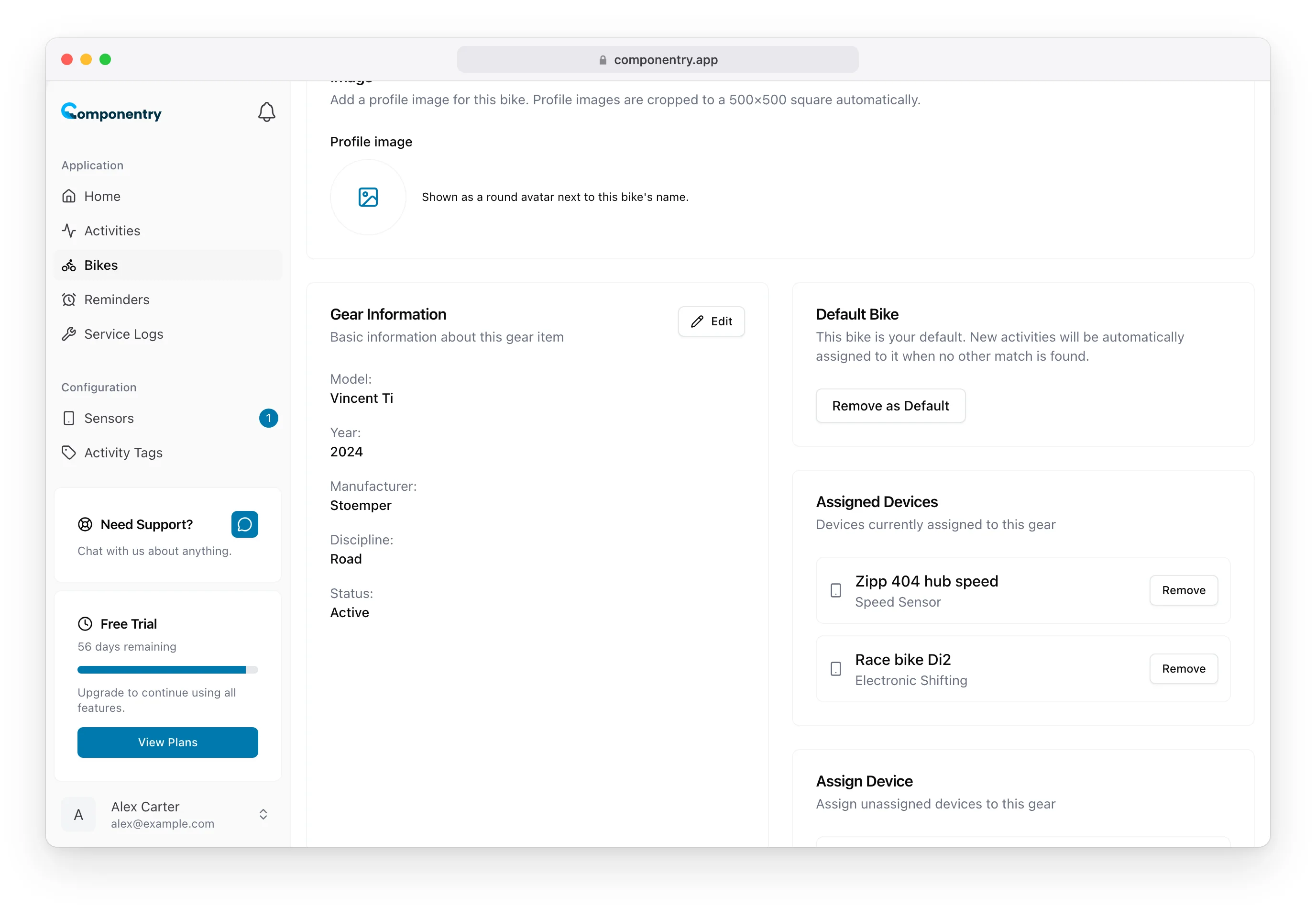
[Screenshot placeholder: Advanced sensor linking showing component-level associations]

Troubleshooting Sensor Links

Common Linking Issues

Sensor Not Appearing in Activities

  • Check sensor battery - Ensure sensor is powered and recording
  • Verify sensor settings - Confirm sensor is set to broadcast data
  • Test sensor connectivity - Pair with bike computer or app to verify function

Multiple Sensors Claiming Same Activity

  • Review sensor priorities - Set primary and secondary sensor roles
  • Check for sensor conflicts - Ensure sensors aren't incorrectly shared
  • Update conflict resolution - Configure how conflicts should be handled

Historical Activities Not Updating

  • Trigger re-processing - Force Componentry to re-analyze past activities
  • Check date ranges - Verify sensor links cover the appropriate time periods
  • Manual override - Manually assign activities if automatic matching fails

Validation and Testing

Verify Sensor Links:

  1. Upload test activity - Use a known activity from the linked bike
  2. Check automatic matching - Verify activity is assigned to correct bike
  3. Review sensor attribution - Confirm correct sensors are recognized

Test Edge Cases:

  1. Multiple bike scenario - Test activities with sensors from different bikes
  2. Sensor failure simulation - Test matching when primary sensor is missing
  3. Conflict resolution - Verify system handles ambiguous situations correctly

Monitor Performance:

  1. Track matching accuracy - Review percentage of automatically matched activities
  2. Identify patterns - Look for consistent matching failures
  3. Optimize configuration - Adjust sensor links based on performance data

[Screenshot placeholder: Sensor validation interface showing link testing and performance metrics]

Maintaining Sensor Links

Regular Review

Periodically review your sensor links:

Monthly Check:

  • Verify all sensors are functioning and recording data
  • Check for new sensors that need linking
  • Review matching accuracy for recent activities

Seasonal Review:

  • Update sensor configurations for seasonal bike changes
  • Check battery status for electronic sensors
  • Plan for any equipment upgrades or replacements

Annual Audit:

  • Review all sensor links for accuracy
  • Clean up obsolete or unused sensors
  • Update sensor information and settings

Documentation

Keep records of your sensor setup:

  • Sensor inventory - List all sensors with serial numbers and specifications
  • Link configuration - Document which sensors are linked to which gear
  • Change history - Track modifications and the reasons for changes
  • Performance notes - Record any issues or optimization opportunities

By properly linking sensors to your gear, you create a foundation for automatic activity tracking that saves time and improves the accuracy of your component wear monitoring. The next section will cover linking sensors to Strava bikes for enhanced integration.

Know your bike, down to the individual component. Unlock more from your bike to keep it running at peak performance.

© Copyright 2026 Componentry. All Rights Reserved.
Download on the App StoreGet it on Google Play
About
  • Features
  • Plans
  • FAQs
  • Blog
  • Contact
Product
  • Help
  • Changelog
Legal
  • Terms of Service
  • Acceptable Use Policy
  • Privacy Policy
  • Cookie Policy
Connect
  • @componentry.app
  • @componentry
  • @componentry
  • r/componentry
  • @componentry.app