• Features
  • Plans
  • Blog
  • FAQs
  • Help
Sign InSign Up
  • Getting started with Componentry
  • Activity Tags
    • Creating Activity Tags
    • Editing and Deleting Activity Tags
    • Hiding Activity Tags
  • Devices
    • Linking a Device to Gear
    • Linking a Device to a Strava Bike
  • Reminders
    • Creating Reminders
    • Time & Duration Reminders
    • Editing & Deleting Reminders
    • Assigning Reminders to Gear & Components
    • Completing Reminders
  • Profiles
    • Creating and Managing Profiles
    • Assigning Components to Profiles
    • Profiles and Activities
  • Service Logs
    • Creating a Service Log for Gear
    • Retiring and Adding Components with Service Log Links
    • Creating and Emailing Service Reports
  • Notifications
    • Notification Types
    • Managing Notification Preferences
    • Troubleshooting Notifications
  • Bike Fit Measurements
    • Using Bike Fit Measurements

Creating and Managing Profiles

Learn how to create, rename, delete, and set a default profile on your bike in Componentry.

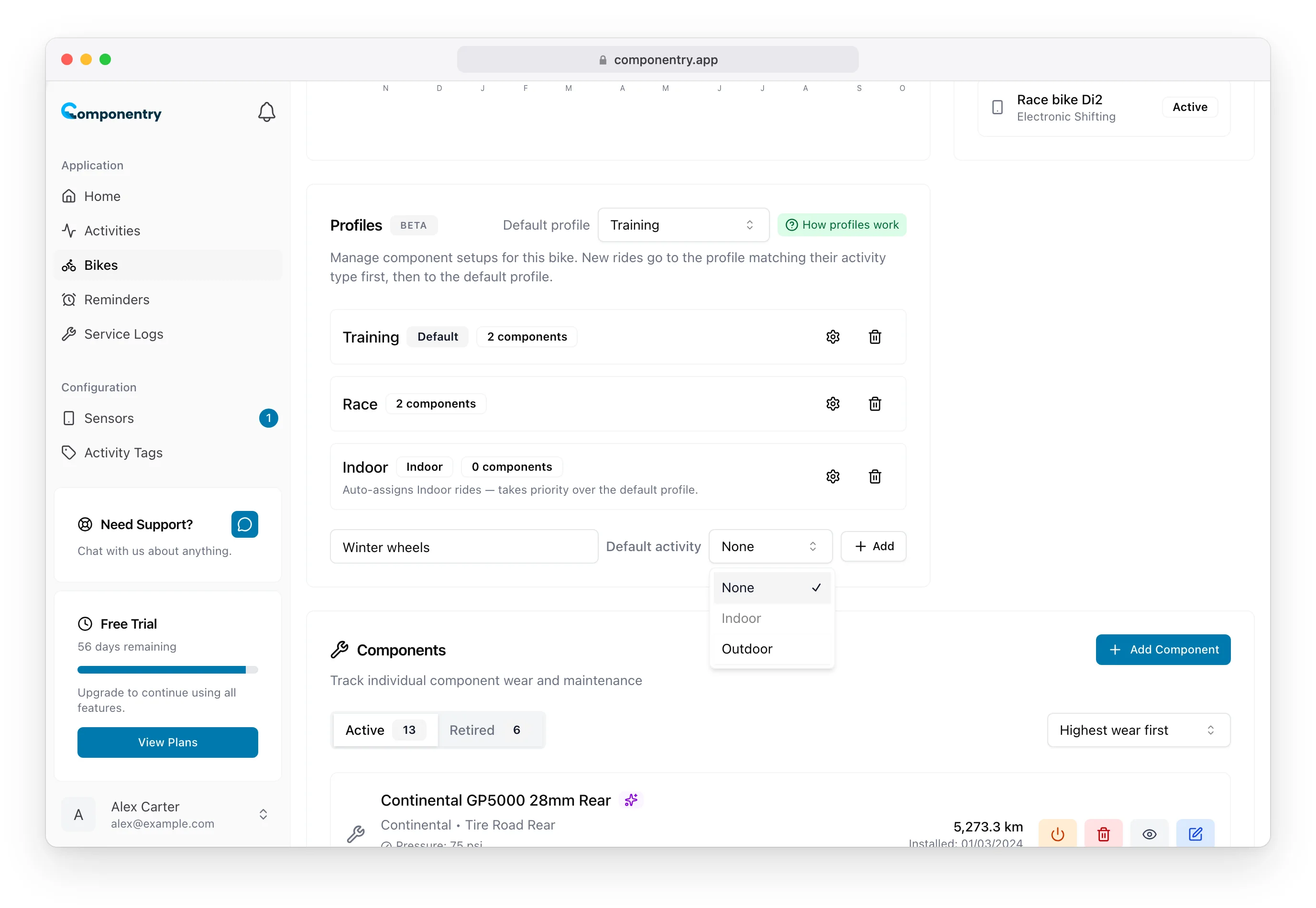
Profiles are managed from your bike's detail screen. You can create as many profiles as you need, rename them at any time, and set one as the default for new activities.

Creating a Profile

  1. Navigate to your bike's detail screen by selecting it from your Gear list.
  2. Find the Profiles section on the page.
  3. Type a name for your profile in the text field (e.g. "Training", "Race", "Chain A").
  4. Optionally select an activity type from the Default activity dropdown — choose Indoor, Outdoor, or leave it as None.
  5. Click Add or press Enter.

The profile is created immediately and appears in the list. You can now assign components to it and set it as the default.

[Screenshot placeholder: Profiles section showing the create profile input field and Add button]

Naming Tips

Choose names that clearly describe the setup:

  • By purpose: "Training", "Race", "Indoor"
  • By component: "Chain A", "Chain B", "Alloy Wheels", "Carbon Wheels"
  • By terrain: "Road Cassette", "Climbing Cassette"

Profile names must be unique within a bike — you cannot have two profiles with the same name on the same bike.

Setting a Default Profile

The default profile is automatically applied to new activities when they are matched to this bike. This saves you from having to manually select a profile after every ride.

  1. In the Profiles section, find the Default profile dropdown in the header.
  2. Select the profile that matches your current physical setup.
  3. The change saves immediately.

When you swap your setup (e.g. put on your race wheels), change the default profile to match. All future activities will use the new default until you change it again.

To clear the default, select No default. Activities will not have a profile assigned automatically, and only default (non-profiled) components will accumulate wear.

[Screenshot placeholder: Default profile dropdown showing available profiles]

Setting an Activity Type

Each profile can optionally be set to Indoor or Outdoor. When set, the profile automatically matches to activities of that type — taking priority over the default profile.

  1. When creating a profile, select the activity type from the Default activity dropdown next to the name field.
  2. When editing an existing profile, click the settings icon and use the Default activity dropdown.

Each bike can have at most one Indoor profile and one Outdoor profile. The dropdown disables types already assigned to another profile on the same bike.

When an activity type is set, a badge (Indoor or Outdoor) appears next to the profile name in the list.

When to Use Activity Types

Activity types are most useful when you split time between indoor and outdoor riding on the same bike. Instead of manually switching the default profile each time you move between the trainer and the road, set one profile as Indoor and another as Outdoor. The correct profile activates automatically based on what your provider reports.

If your profiles don't map cleanly to indoor vs outdoor (for example, "Chain A" and "Chain B" for chain rotation), leave the activity type as None and use the default profile instead.

Renaming a Profile

  1. In the Profiles list, click the settings icon next to the profile you want to rename.
  2. Edit the name in the inline text field.
  3. Press Enter or click the checkmark to save.

Renaming a profile does not affect component assignments or activity associations — everything stays linked.

Deleting a Profile

  1. In the Profiles list, click the delete icon next to the profile.
  2. A confirmation dialog will appear explaining what will happen.
  3. Click Delete to confirm.

What Happens When You Delete a Profile

  • Components that were assigned to the deleted profile revert to default. They become default components and will now accumulate wear from all activities on the bike.
  • Activities that had the deleted profile will be treated as having no profile.
  • Wear is automatically recalculated for the affected components to reflect their new status as default components.

Deleting a profile cannot be undone. If you're unsure, consider renaming the profile instead.

[Screenshot placeholder: Delete profile confirmation dialog]

Profile Order

Profiles are displayed in the order they were created. The first profile you create appears at the top of the list.

Know your bike, down to the individual component. Unlock more from your bike to keep it running at peak performance.

© Copyright 2026 Componentry. All Rights Reserved.
Download on the App StoreGet it on Google Play
About
  • Features
  • Plans
  • FAQs
  • Blog
  • Contact
Product
  • Help
  • Changelog
Legal
  • Terms of Service
  • Acceptable Use Policy
  • Privacy Policy
  • Cookie Policy
Connect
  • @componentry.app
  • @componentry
  • @componentry
  • r/componentry
  • @componentry.app