Assigning Components to Profiles
Put the parts you swap into a profile so they only wear on the rides they were fitted for.
Once a bike has profiles, each component either belongs to one profile or to none. That decides which rides it wears on.
Profile or no profile?
Leave a component with no profile (Default (all activities)) when it's on the bike for every ride: frame, bars, stem, seatpost, groupset, brake pads, cables, bar tape. It wears on every ride on the bike.
Put a component in a profile when you swap it in and out: wheels, chains, cassettes, or tyres you move with a wheelset. It only wears on rides with that profile, plus rides with no profile while its profile is the bike's default.
Choose a profile when adding a component
When the bike has profiles, the Add New Component sheet has a Profile field.
- On the bike's page, click Add Component.
- Fill in the component details.
- Under Profile, choose a profile, or leave Default (all activities).
- Save the component.
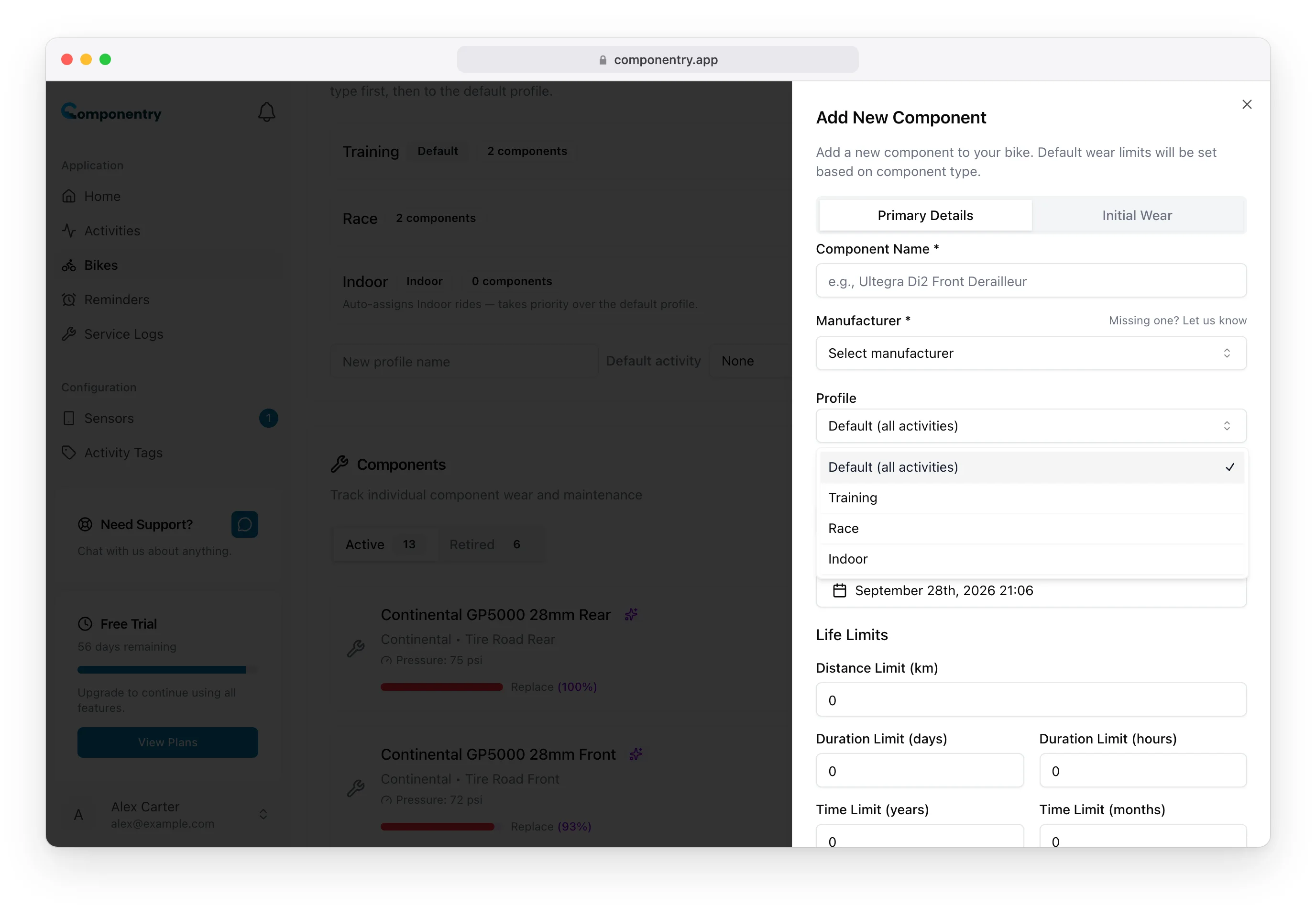
See Components for the rest of the form.
Change a component's profile
- On the bike's page, click the edit (pencil) button on the component.
- Change Profile, or set it to Default (all activities) to take it out of any profile.
- Save.
Componentry recalculates the component's wear against its new set of rides straight away:
- Into a profile: only rides with that profile count, so wear can go down.
- Back to no profile: every ride on the bike counts, so wear can go up.
- To a different profile: only rides with the new profile count.
See which profile a component is in
In the bike's component list, a component in a profile has a badge with the profile name next to it. Components with no profile have no badge. The Profiles card also shows how many components each profile has.
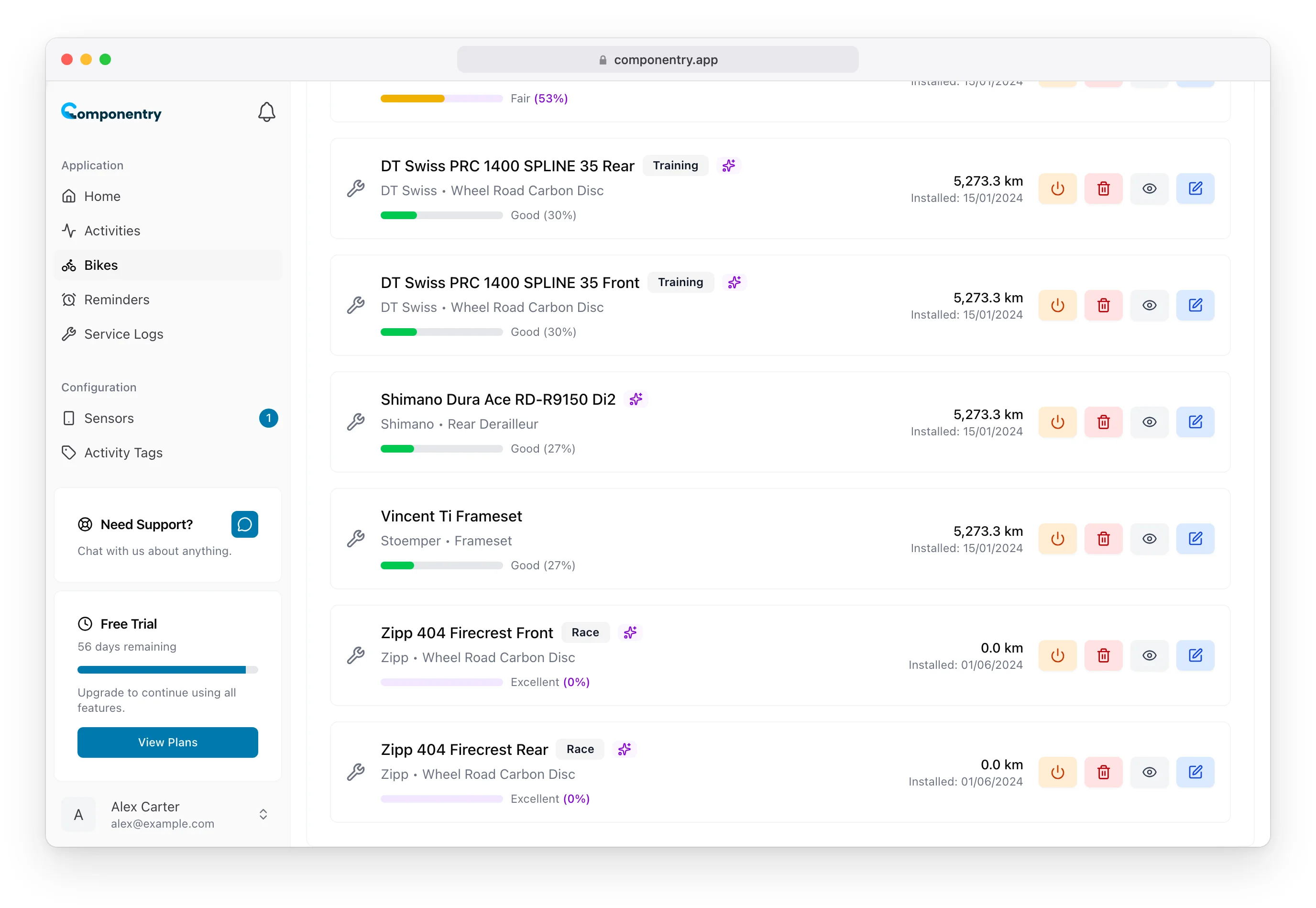
Example: road bike with training and race wheels
| Profile | Components |
|---|---|
| Training (default) | DT Swiss front and rear wheels |
| Race | Zipp 404 front and rear wheels |
| Indoor (tagged Indoor) | none: the wheels come off for the direct-drive trainer |
| No profile | Frame, chain, cassette, derailleur, brake pads, bar tape |
Training rides wear the DT Swiss wheels, race rides wear the Zipps, indoor rides wear neither, and everything with no profile wears on every ride.