Editing activities
Change a ride's bike, profile and tags one at a time or in bulk, and delete rides you don't want counted.
A ride adds wear to the components on its bike and profile, so fixing a ride that landed on the wrong bike keeps your wear figures right. You can edit one ride from its details panel, or many at once from the Activities table.
Change one ride's bike or profile
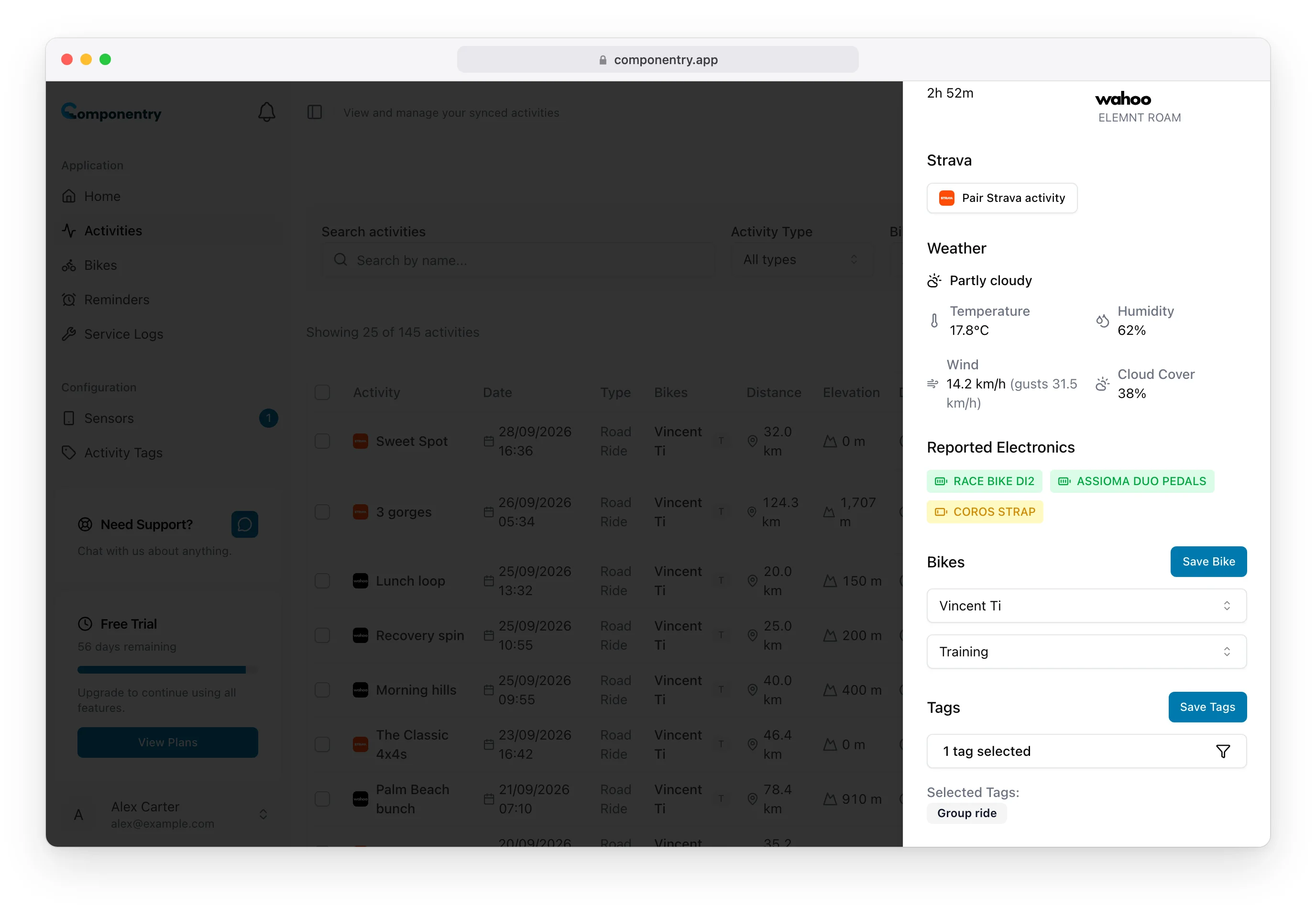
- On the Activities page, select the ride to open its details.
- Under Bikes, choose the bike. Choose No bike linked to take the ride off every bike.
- If the bike has profiles, a second list shows the profile. It fills in automatically: the profile matching the ride's indoor or outdoor setting, otherwise the bike's default. Pick a different one if needed, or No profile.
- Select Save Bike.
Wear is recalculated as soon as you save, on the chosen bike and on the bike the ride moved off, including when you choose No bike linked. See Profiles for how profiles decide which components a ride counts towards.
Change one ride's tags
- In the ride's details, open the list under Tags.
- Tick or untick tags. They're grouped into System Tags, Strava Tags and Personal Tags. Hidden tags aren't listed.
- Select Save Tags.
Save Tags saves exactly what's ticked, so unticking a tag removes it from the ride. Hidden tags already on the ride stay on it. See Activity Tags.
Edit many rides at once
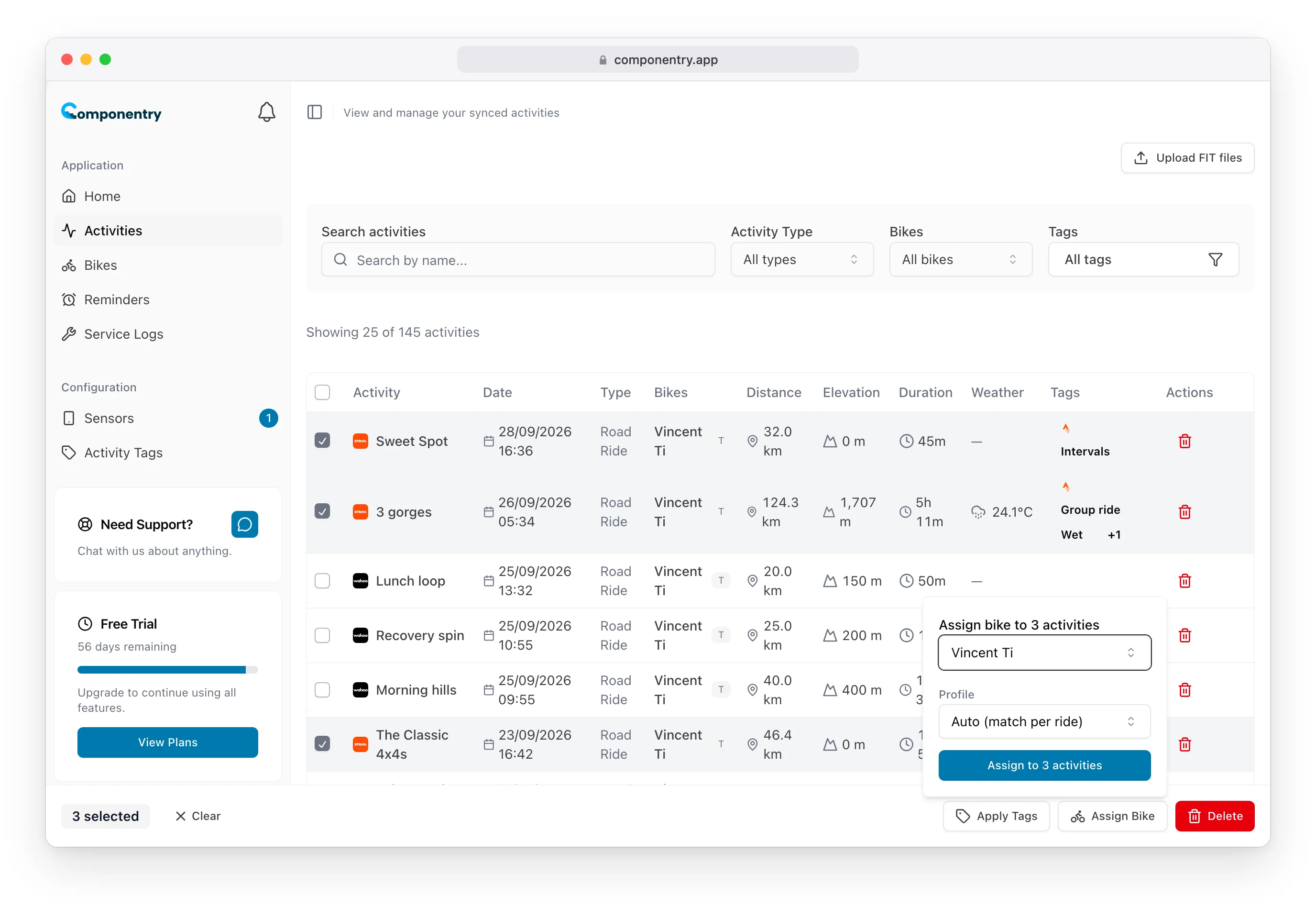
Tick the box at the start of each row, or the box in the header to select every ride on the current page. A toolbar appears at the bottom of the screen with the number selected and three actions.
Assign Bike
- Select Assign Bike and choose a bike, or No bike to take the rides off their bike.
- If the bike has profiles, choose a Profile:
- Auto (match per ride) gives each ride the profile that fits it (its indoor or outdoor profile, otherwise the bike's default).
- Pick a named profile to put every selected ride on it. The bike's default is marked (default).
- Select Assign to n activities.
Wear is recalculated for every bike affected. Re-assigning rides to the bike they're already on, with Auto, is a quick way to reset their profiles.
Apply Tags
Select Apply Tags, tick one or more tags and select Apply to n activities. Tags are added to the rides; existing tags stay. Hidden tags aren't offered.
Delete
Select Delete and confirm. Deleted rides can't be recovered, and wear is recalculated for the bikes they were on.
Selections only cover the page you're on. Moving to another page clears them.
Delete one ride
Select the bin icon at the end of the ride's row and confirm. Wear on that ride's bike is recalculated.
Reprocess a ride
If a ride synced from a bike computer looks wrong, open its details, right-click anywhere in the panel and choose Reprocess. Componentry fetches the ride file again and processes it from scratch. The option is greyed out for rides without a ride file, such as rides imported from Strava.