Editing and Removing Components
Change a component's details or limits, retire it through a service log, bring it back, or delete it.
Each row in a bike's Components card has four buttons on the right: retire, delete, view details and edit. Retired parts have reactivate, delete and view details instead.
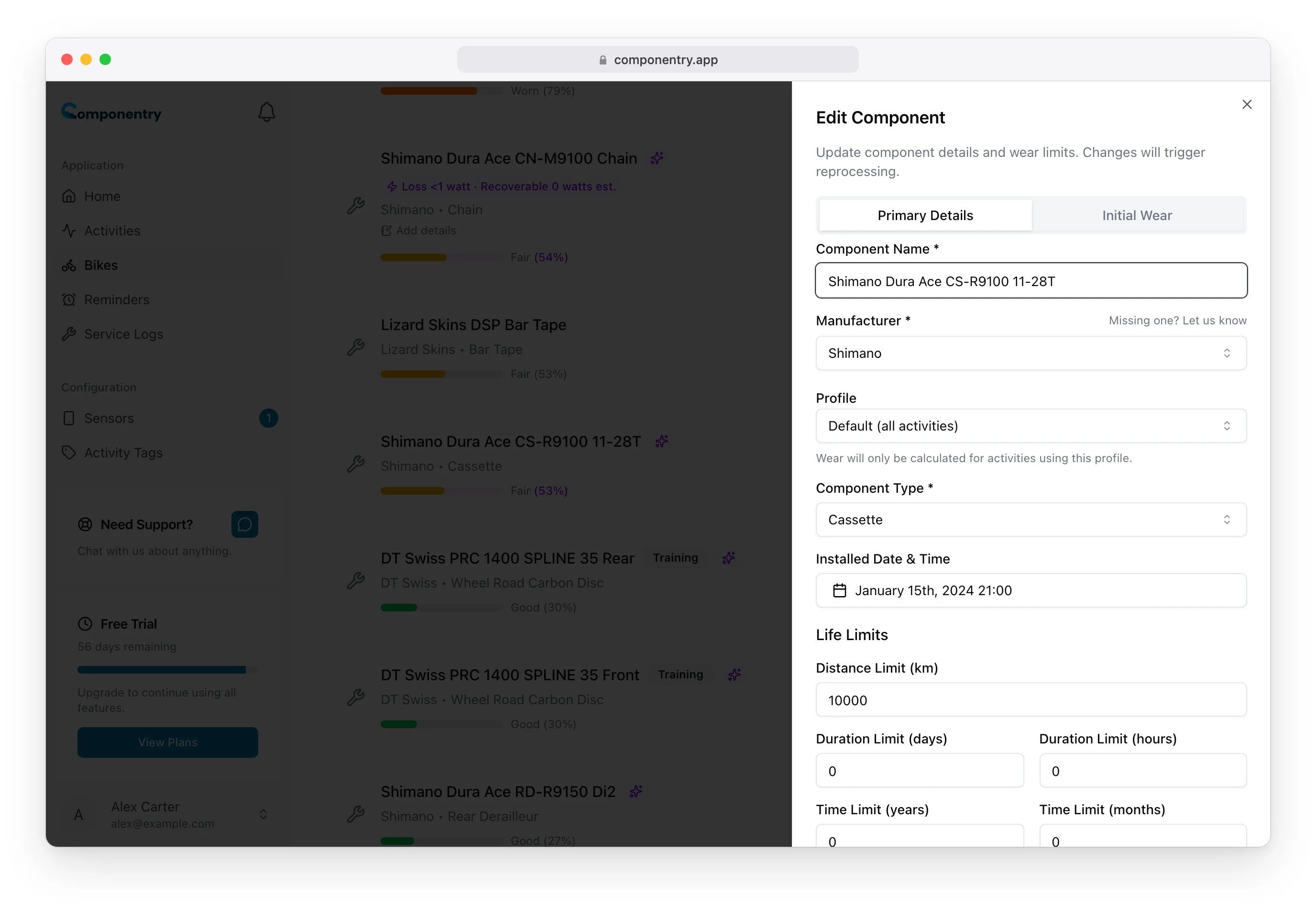
Edit a component
- Click the edit (pencil) button on the component's row.
- Change anything on the Primary Details tab: name, manufacturer, profile, type, installed date and time, life limits, and the Waxed switch on chains.
- To correct wear the part had before it was fitted, use the Initial Wear tab.
- Click Update Component.
Componentry recalculates the component's wear from your rides as soon as you save, so a new installed date or limit shows up straight away. The bike's Component Wear card updates too.
Only active components can be edited. To change a retired part, reactivate it first.
Retire a component
Retiring takes a part off the bike but keeps its history. Retirement happens inside a service log, so every part that comes off is recorded with the wear it came off at, a note on why, and the part that replaced it.
- Click the retire (power) button on the component's row.
- In Retire in a service log, click Start a service log. A new service log opens for that bike.
- Retire the part there, and add its replacement in the same step if you're fitting one.
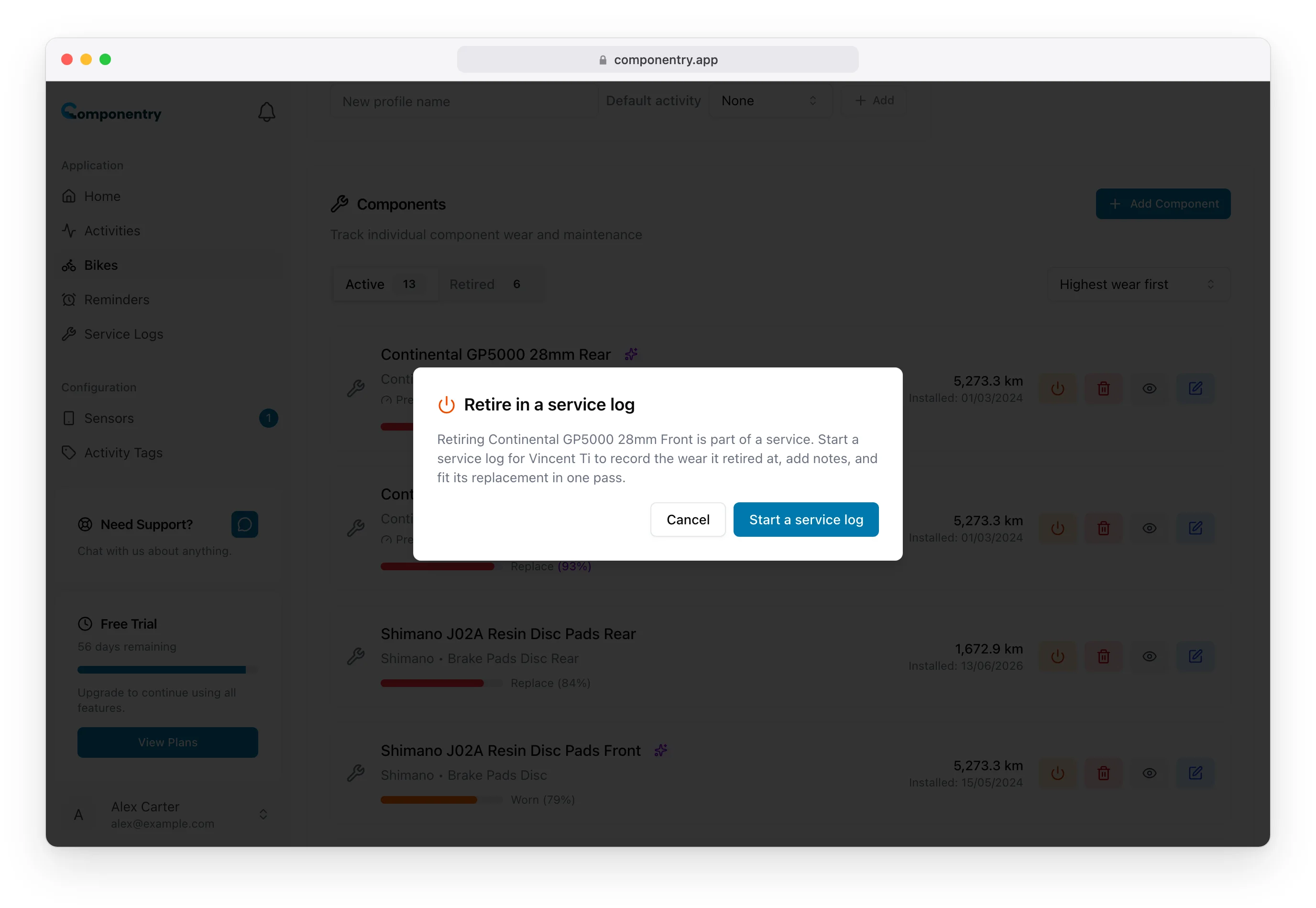
The full steps are in Retiring and replacing components. When the service is completed, a replaced part's reminders move across to its replacement. A part retired with nothing fitted in its place loses its reminders.
Retired parts move to the Retired tab on the Components card, where each one shows the wear you recorded when you retired it and the date it came off.
Reactivate a retired component
If you retired a part by mistake, or you're refitting it:
- Open the Retired tab on the Components card.
- Click the reactivate (play) button on the row.
- Confirm with Reactivate Component.
The part becomes active again, its retirement date and recorded wear are cleared, and wear tracking carries on from where it was.
Delete a component
Deleting removes a component and everything recorded against it, permanently. Use it for parts added by mistake or duplicates. For a part that has worn out, retire it instead so its history stays.
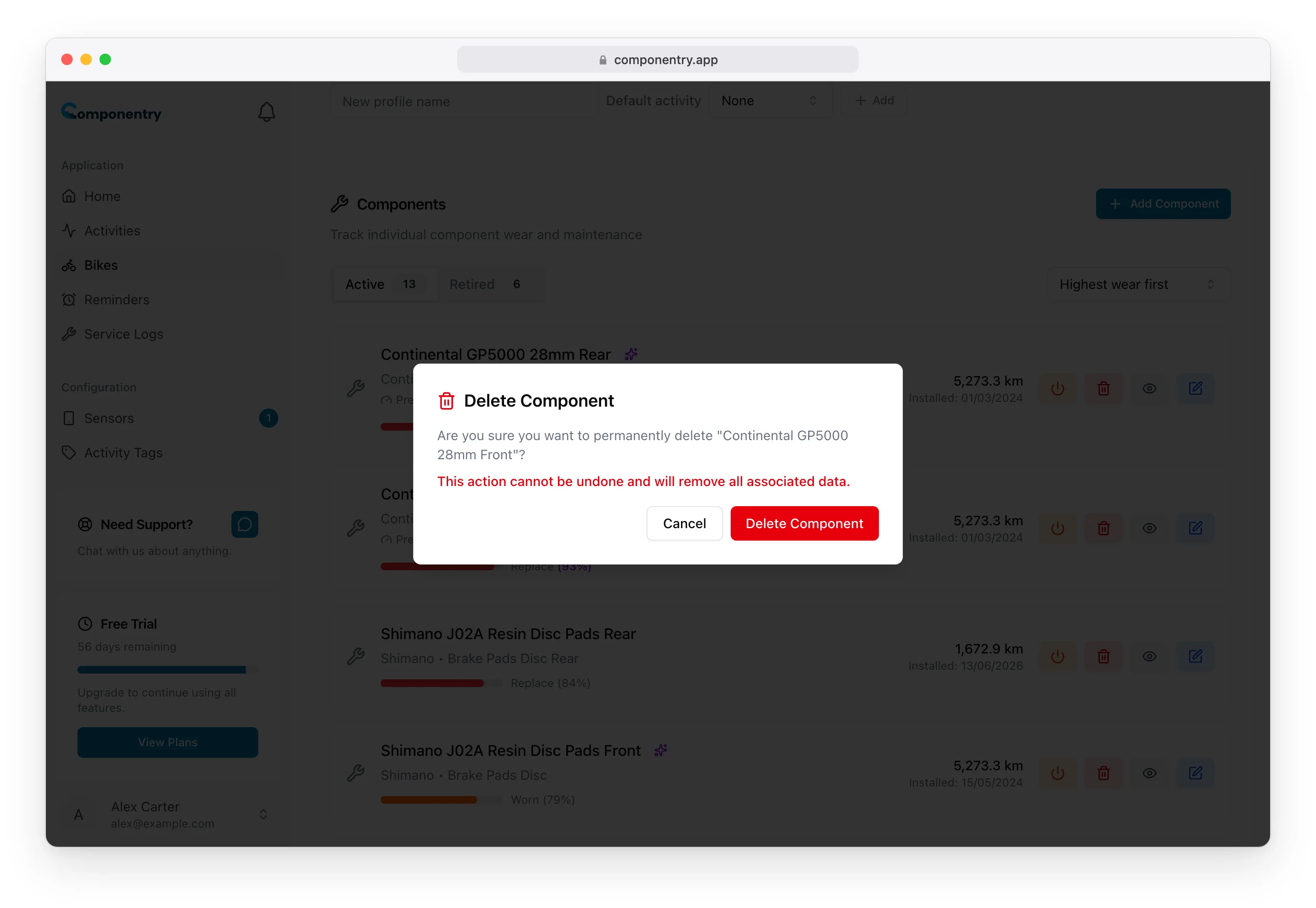
- Click the delete (bin) button on the component's row.
- Confirm with Delete Component.
The mobile app has the same edit, retire and delete actions on the component screen.