Setting Up a Bike with a Template
Add a whole bike's worth of components in one go with the setup wizard.
The setup wizard adds a full set of components to a bike in one pass. You pick a brake type and how detailed you want to be, and Componentry pre-fills a list of parts. Each row only needs a manufacturer and an installed date. Wear limits and service reminders come from each component type's defaults.
Where the wizard starts
- When you add a bike. The Add Bike form has a Brake Type and a Setup Template. Pick any template other than None / Custom and you land in the wizard as soon as the bike is saved. See Adding a bike.
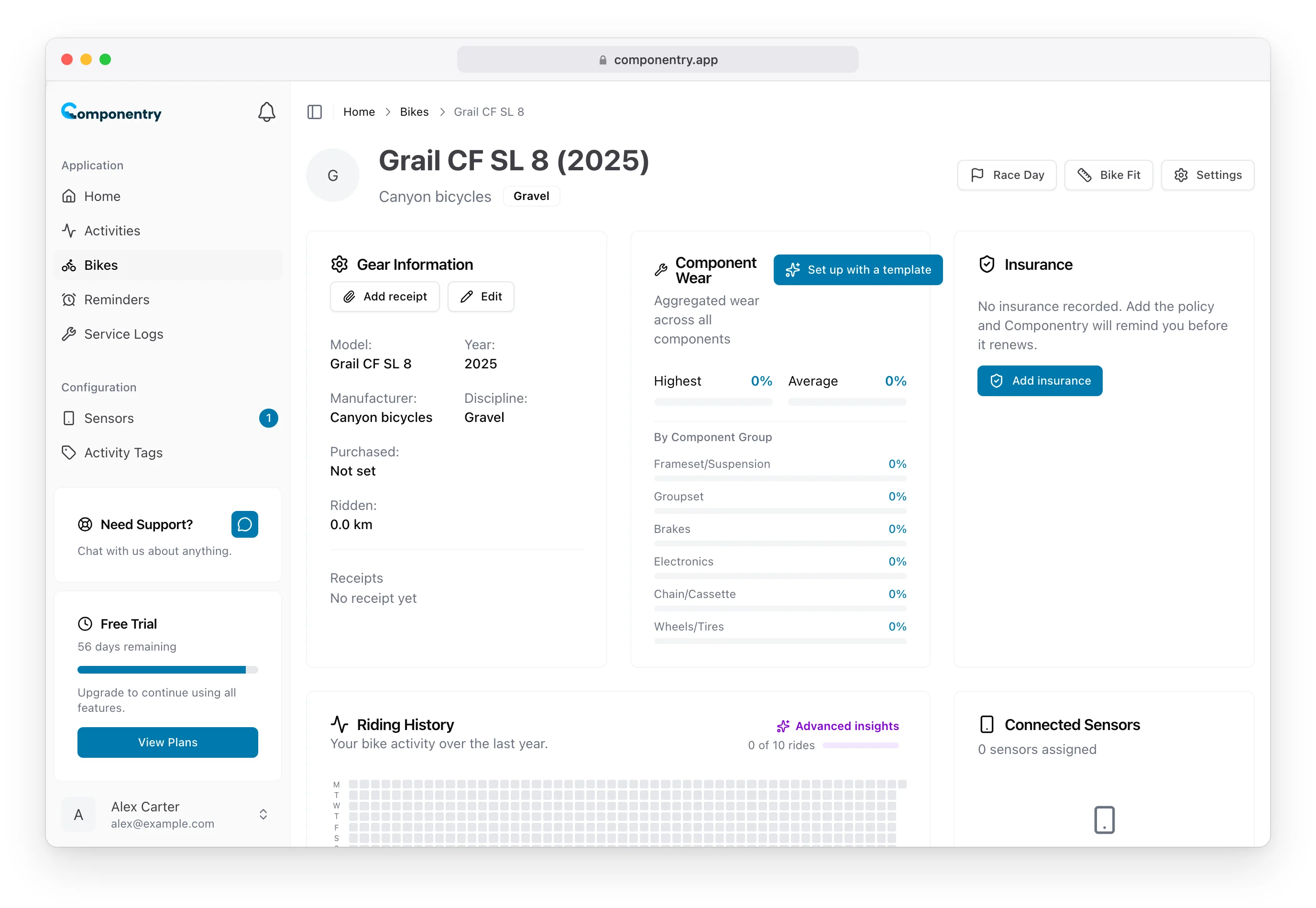
- On a bike that only has its starter chain. Bikes added with None / Custom, or imported from Strava, start with a single Chain so wear tracking can begin straight away. While that chain is the only active component, a full-width Set up with a template button appears inside the Component Wear card, and another sits next to Add component at the top of the Components card.
- On a bike with no components. The empty Components card offers Set up with a template alongside Add component.
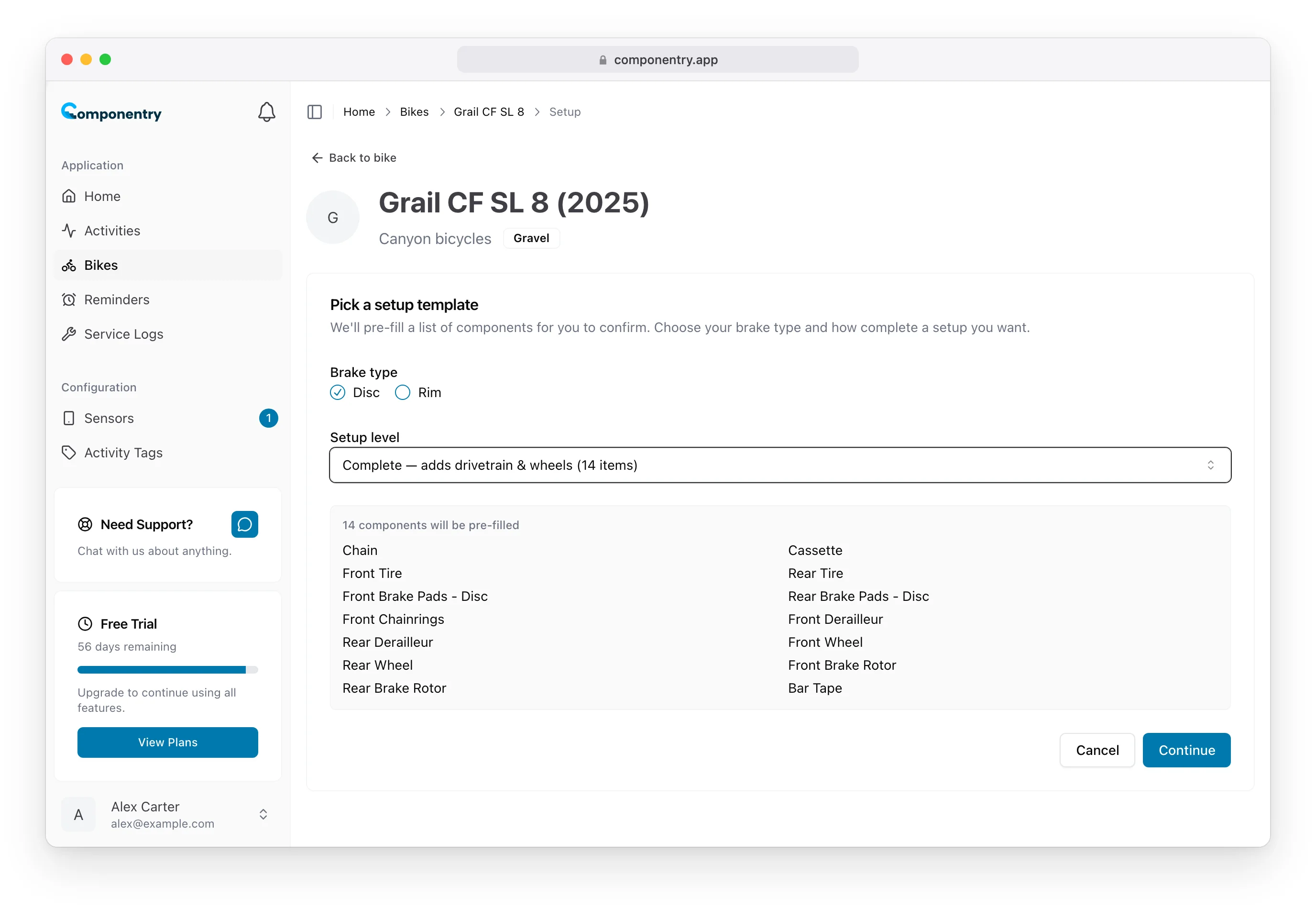
Pick a template
- Choose the Brake type: Disc or Rim.
- Choose the Setup level:
- Basic: the parts that wear fastest. Chain, cassette, front and rear tires, front and rear brake pads.
- Complete: adds chainrings, front and rear derailleurs, front and rear wheels, front and rear brake rotors on disc bikes, and bar tape on road and gravel bikes.
- Detailed: adds the frame, bar/stem/seatpost, saddle, crank and pedals, plus suspension on mountain bikes.
- Check the list of components that will be pre-filled, then click Continue.
Tire and wheel types follow the bike's discipline, so a gravel bike gets gravel tires. If the bike has no discipline with a default set, the picker says so. Change the discipline with Edit on the bike's Bike Information card and try again.
Fill in the rows
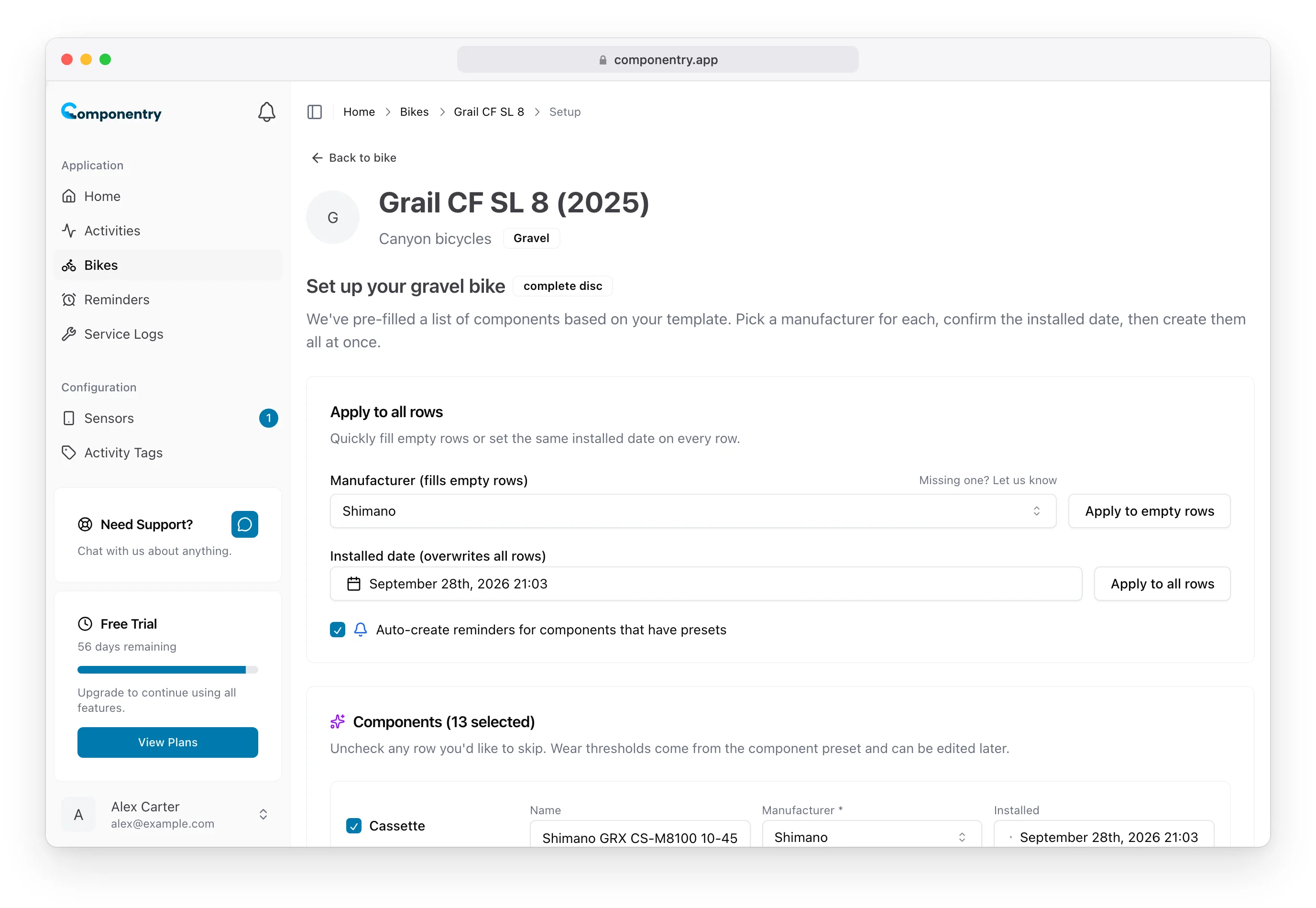
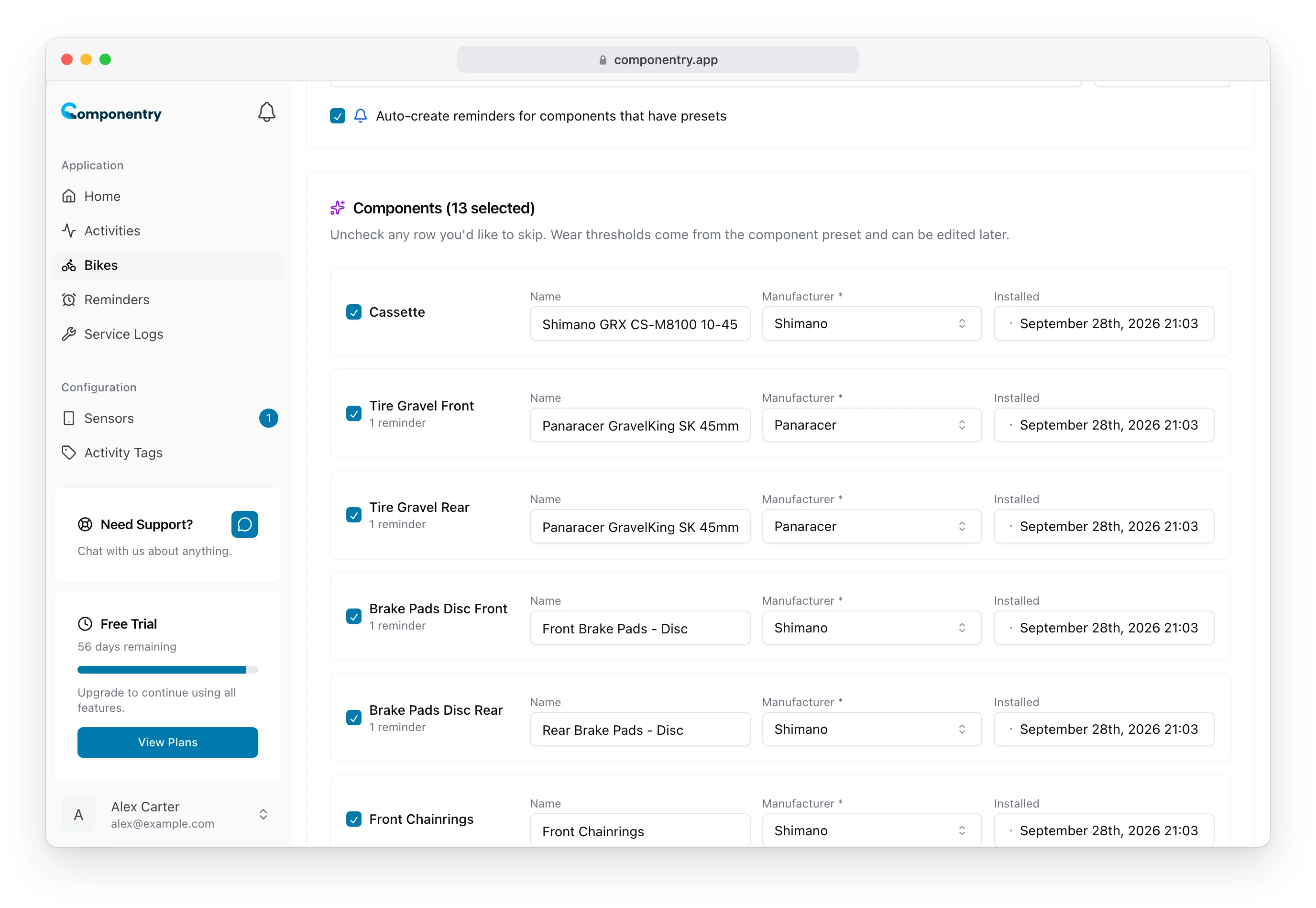
The wizard lists one row per component with a Name, Manufacturer and Installed date.
Use Apply to all rows to save typing:
- Manufacturer (fills empty rows): pick a brand and click Apply to empty rows. Rows you've already set keep their manufacturer.
- Installed date (overwrites all rows): pick a date and click Apply to all rows. Handy when everything came on the bike when you bought it.
Change any row that differs, for example tires from a different brand, or give a part its model name.
Untick any row you don't want to track.
Leave Auto-create reminders for components that have presets ticked to add the standard reminders (chain wear and lube, tire checks, brake pad checks and so on). The row shows how many reminders it will create.
Click Create N components. Every row needs a manufacturer first.
Click Skip for now to leave without adding anything. You can come back later.
Parts already on the bike
The wizard skips any component type the bike already has, so the starter chain isn't duplicated. If a bike already has everything in the template, the wizard shows Nothing left to add. Add extra parts one at a time with Add Component.
Default limits and names can be changed afterwards with the edit button on each row. See Editing and removing components.
The mobile app has the same setup wizard when you create a bike.