Adding a bike
Add a bike yourself or import your bikes from Strava, give a bike a name, and edit its details later.
You can add a bike by filling in its details, or import the bikes you already have on Strava in one go.
Add a bike yourself
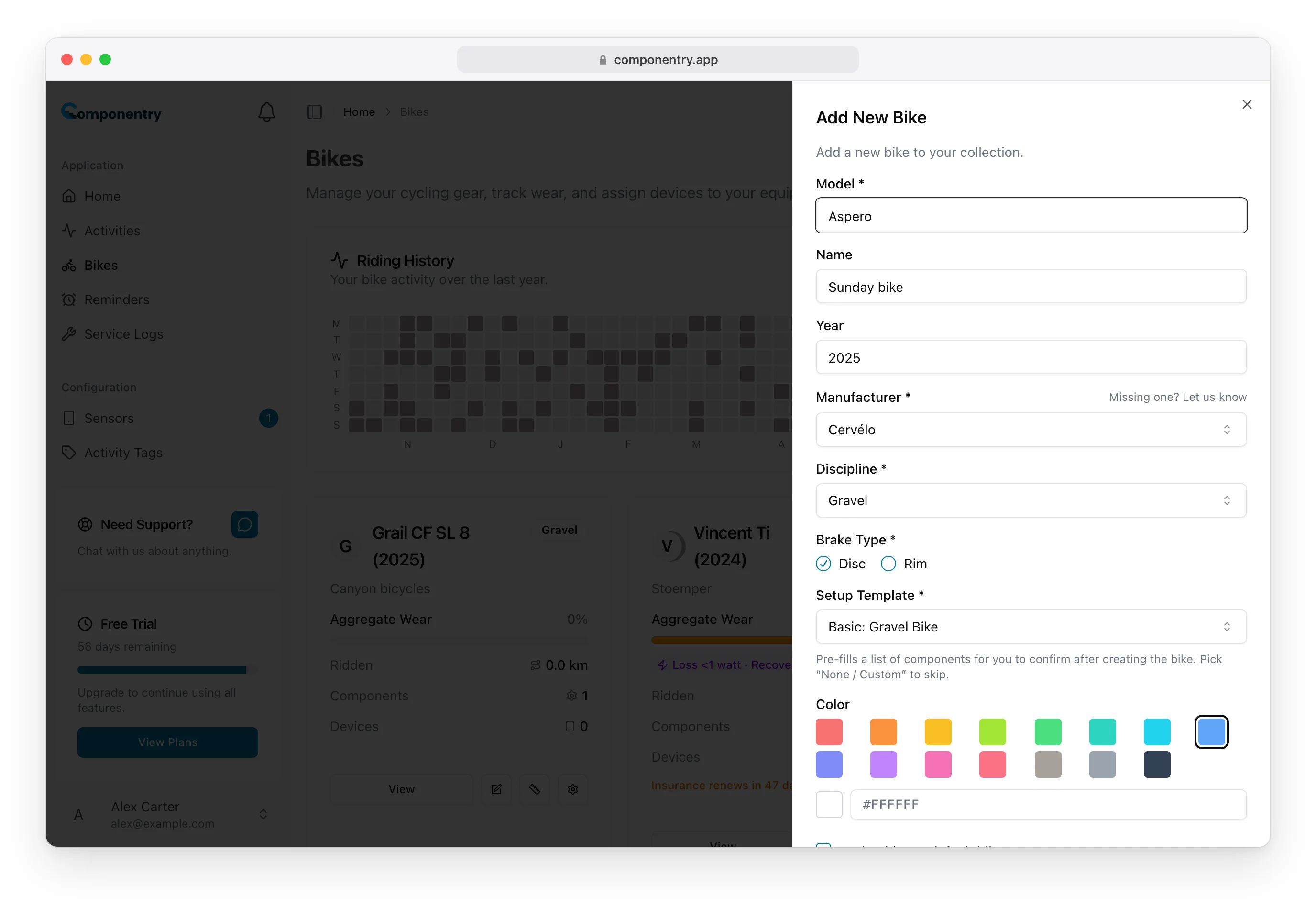
- Open Bikes and choose Add Bike.
- Fill in the details:
- Model (required), for example "Aspero".
- Name (optional), what you call the bike, for example "Sunday bike".
- Year (optional).
- Manufacturer (required). If yours isn't listed, choose Missing one? Let us know to email us.
- Discipline (required), such as Road, Gravel or MTB.
- Brake Type: Disc or Rim.
- Setup Template: a starting list of components (see below).
- Color: used for the bike's avatar and in the riding history graphs.
- Make this my default bike: rides that can't be matched to a bike any other way go to your default bike. It's ticked for your first bike.
- Choose Add Bike.
Setup templates
A template pre-fills a list of components for you to confirm straight after the bike is created. Componentry suggests one from the discipline and brake type you pick, and you can change it:
- Basic, or a basic set for a road, MTB or gravel bike
- Complete
- Detailed
- None / Custom skips the list. The bike starts with just a chain so there's something to track wear on, and you add the rest yourself.
After you choose Add Bike with a template, you land on the setup page: pick a manufacturer and installed date for each component, untick any the bike doesn't have, and create them. You can also choose Skip for now and come back later. See Components.
Import your bikes from Strava
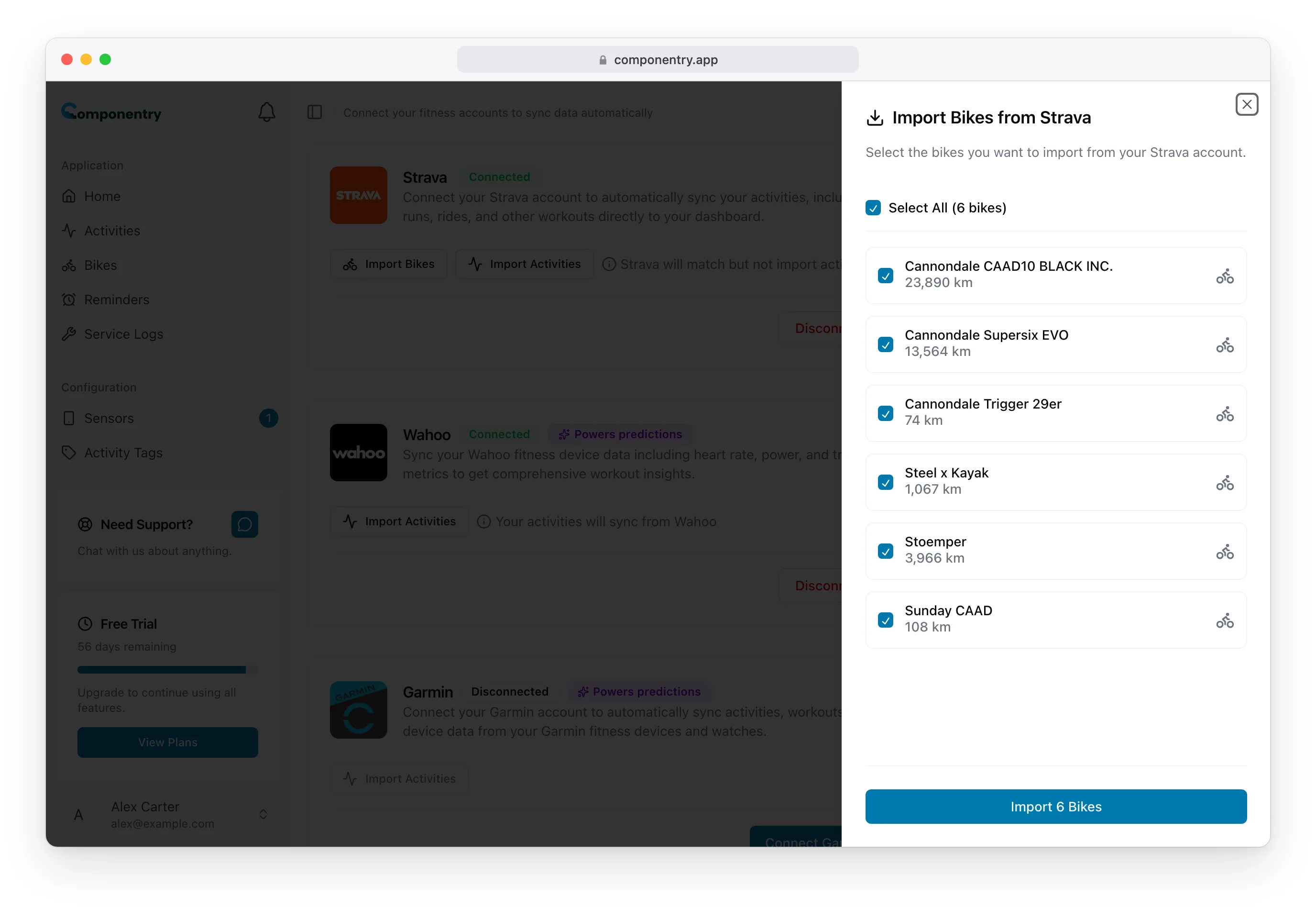
If you've connected Strava, you can bring in the bikes from your Strava account:
- Open Apps and choose Import Bikes on the Strava card. If you have no bikes yet, the Import from Strava button on the Bikes page takes you there too.
- Tick the bikes you want. Each shows the distance Strava has recorded for it.
- If you don't have a default bike yet, pick one under Default bike.
- Choose Import (the button shows how many bikes, for example Import 2 Bikes).
When the import finishes you see what was imported and what was skipped, with the reason for each skipped bike, such as a bike that's already imported or one you've retired. Choose Done and the Bikes page lists the new bikes with a Set up components button for each.
Each imported bike:
- keeps the name you gave it on Strava, with the model from Strava's details
- is matched to a manufacturer from its Strava brand when Componentry knows it, and otherwise shows the manufacturer as not set
- starts as a Road bike, which you can change with Edit
- starts with a chain so wear tracking can begin
- stays linked to the Strava bike, so rides you record on Strava are matched to it
- carries the Strava distance as its starting odometer (see Distance ridden)
If you removed an imported bike and want it back, import it again. It reconnects to the same Strava bike.
Edit a bike's details
Choose Edit in the Bike Information card on the bike page, on the bike's settings page, or the pencil button on its card on the Bikes page. The edit sheet has the same fields as Add Bike, plus the Purchase and Distance sections (see Purchase and receipts). Choose Save changes.
Bike names
A name is optional. When a bike has one, the name is its title everywhere it appears: the dashboard, the Bikes page, activities, reminders and service logs. The year, model and manufacturer show underneath. Without a name, the model is the title, with the year beside it.
You can also add and edit bikes in the Componentry mobile app.