Bike settings
Add a bike image, choose your default bike, assign sensors, recalculate wear, and retire, reactivate or remove a bike.
Each bike has a settings page. Open the bike and choose Settings in the top right, or choose the gear button on the bike's card on the Bikes page.
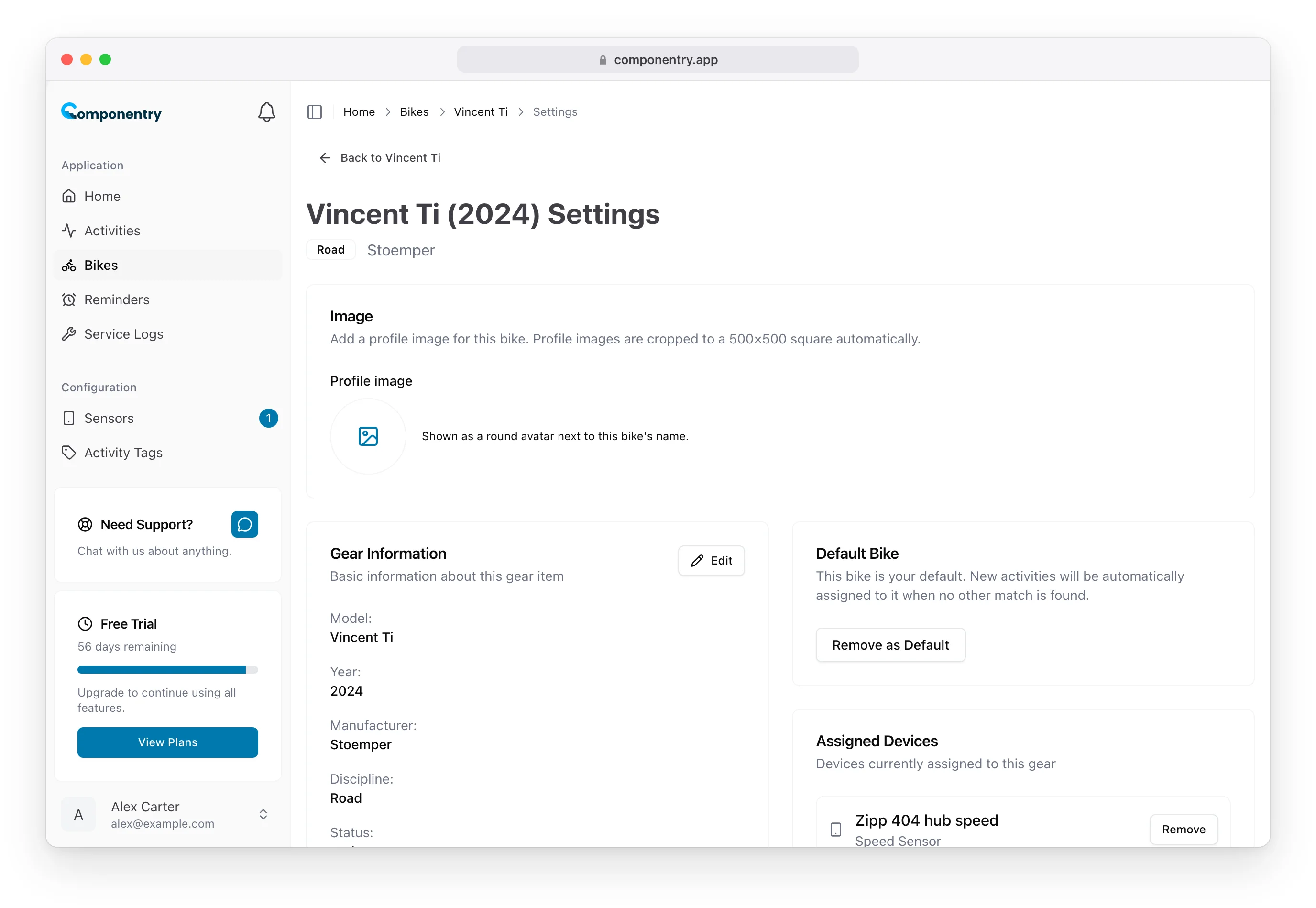
Add a bike image
- In the Image card, choose the round Profile image placeholder.
- Pick a photo.
The image is cropped to a square automatically and shows as a round avatar next to the bike's name on the dashboard, the Bikes page and the bike page. Choose Clear to remove it. Images added in the mobile app show on the web too, and the other way round.
Edit the bike's details
The Bike information card shows the model, year, manufacturer, discipline and whether the bike is active. Choose Edit to change them. See Adding a bike.
Choose your default bike
Your default bike is where new rides go when Componentry can't match them to a bike any other way. A ride is matched by its sensors or its Strava bike first, and only goes to the default bike when neither matches.
- To make this bike your default, choose Set as default bike in the Default bike card.
- To stop using it as the default, choose Remove as default, then Remove default.
Only one bike can be the default. Setting a new one replaces the old one. The default bike has a Default badge on the Bikes page. You can also tick Make this my default bike when adding or editing a bike.
Pair sensors
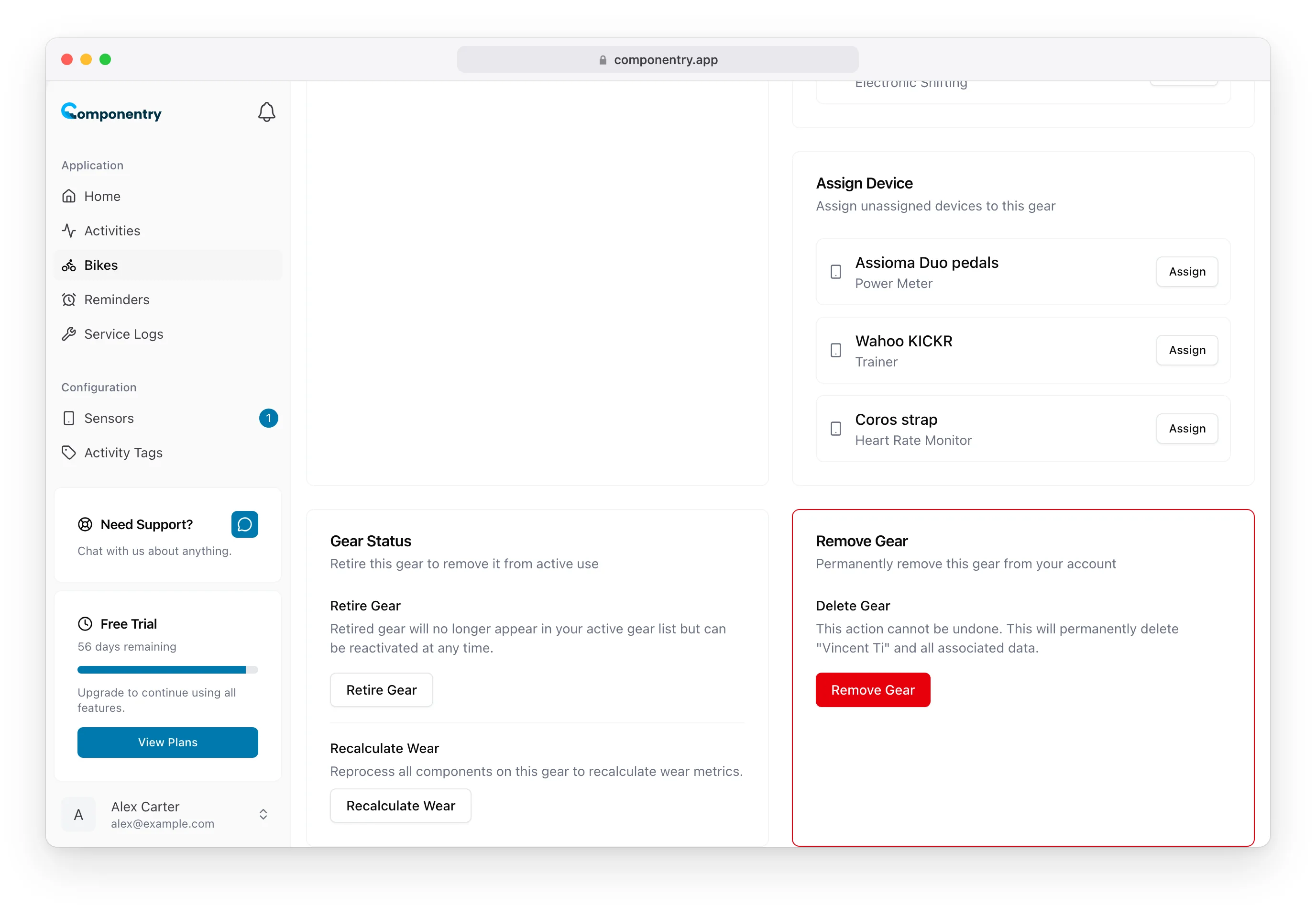
Paired sensors lists the sensors paired with this bike. Choose Unpair to unpair one. Pair a sensor lists bike sensors that aren't paired with any bike; heart rate monitors and trainers aren't offered. Choose Pair to pair one. Rides recorded with a paired sensor are matched to this bike.
Pairing or unpairing here clears any profile pinned to the sensor. To pin one, use the Sensors page. See Pairing a sensor with a bike.
Recalculate wear
Under Bike status, Recalculate wear works out the wear on every component on this bike again from its rides. You can recalculate each bike once a day.
Retire or reactivate a bike
Retire a bike you no longer ride, such as one you've sold, to take it out of your active bikes while keeping its history.
- Under Bike status, choose Retire bike.
- Confirm with Retire.
A retired bike:
- moves to the Retired tab on the Bikes page, showing the date it was retired
- is marked as retired on its own page, where Race Day and Bike Fit are hidden
- keeps its components, wear, service history and sensors
- keeps its rides in your history
- can't be your default bike. If it was, the default is cleared so you can choose another.
To bring a bike back, open the Retired tab on the Bikes page and choose Reactivate on its card, or choose Reactivate bike on its settings page. It returns to your active bikes with its history intact.
Remove a bike
Removing a bike deletes it for good. It can't be undone.
- Under Remove bike, choose Remove bike.
- Check what the dialog says is deleted and kept, then confirm with Remove bike.
This deletes the bike with its components, service logs and maintenance checks, reminders, profiles, bike fit, insurance, receipts and documents, and photos, including the files you uploaded. Your rides and sensors are kept: rides stay in Activities and sensors stay on the Sensors page, no longer linked to any bike. If you only want the bike out of the way, retire it instead.