Tire Pressure
Record the pressure you run in each tire and see it on your bike cards.
Every tire component has a Pressure you can fill in. It's saved against that tire, so you can check what you run before a ride, and it appears on the bike's card on your dashboard and on the Bikes page.
Set a tire's pressure
- Open Bikes and pick the bike.
- In the Components card, find the tire and click Set pressure under its name. Once a pressure is saved, the link reads Pressure: 75 psi (or whatever you entered) and you click that to change it.
- Enter the pressure and click Save.
To remove a pressure, empty the field and click Save.
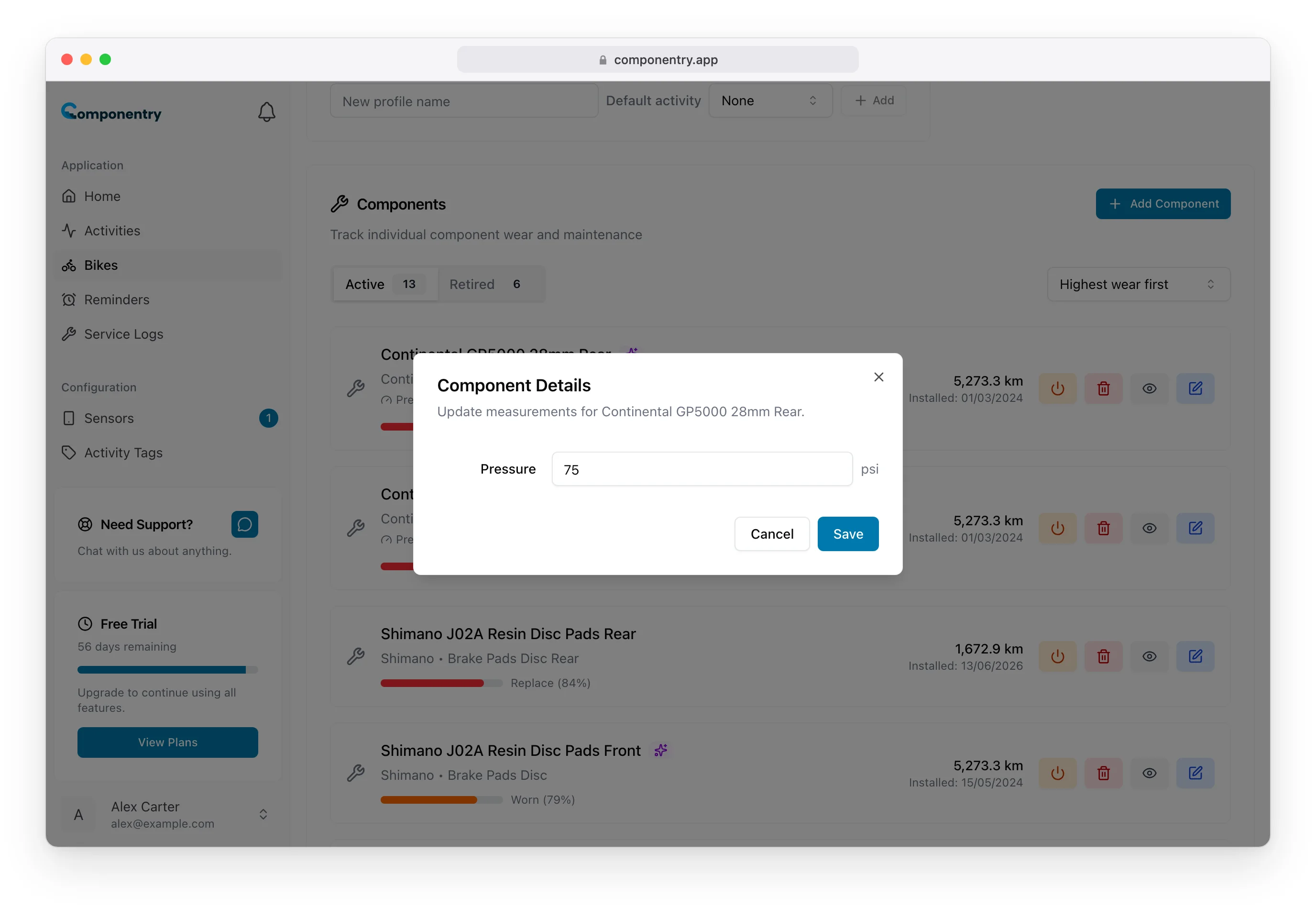
You can also enter Pressure when you add a tire, or change it with the edit button on the tire's row. Changing the pressure doesn't need a service log and doesn't affect wear.
Where pressures appear
Bike cards on the dashboard and the Bikes page show a small F / R row with the front and rear pressures. If the bike has a default profile, the pressures come from the tires on that profile, so race wheels and training wheels can each carry their own pressures. Bikes without a default profile show their first pair of tires.
Pressure units
Choose PSI, Kilopascals (kPa) or Bar with Tyre Pressure Unit in your account settings under Units. See Units and locale.
Pressures are saved as the number you type. Changing the unit changes the label only; saved pressures aren't converted. A saved 72 psi shows as 72 bar after switching to bar, so re-enter your pressures after you change unit.
Choosing a pressure
Componentry records the pressure you run but doesn't recommend one. The tire pressure guide explains what affects the right pressure and links to a calculator.
The mobile app shows the same pressures on its bike cards and lets you edit them from the component's measurements.