Connecting Claude
Add Componentry to Claude so you can ask about your bikes, wear and maintenance in chat.
Connecting takes about a minute. It works in Claude on the web, the desktop app and the mobile apps; connect once and it's available everywhere you use Claude.
Connect
Open AI assistants in Componentry and keep it to hand: it has the two values you need to copy.
- In Claude, open Settings → Connectors and choose Add custom connector.
- Name it Componentry and paste in the server URL from that page.
- Open Advanced settings and paste in the OAuth Client ID. Leave the client secret empty.
- Select Add, then Connect.
- Sign in to Componentry if you're asked to. If you use two-step verification you'll be asked for your code as usual.
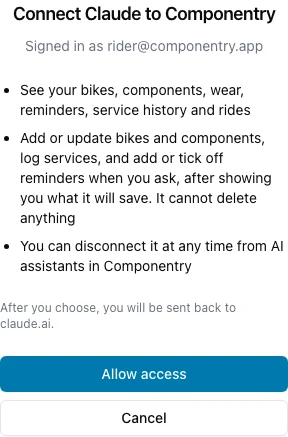
- Review what Claude will be able to do, then select Allow access.
You'll be returned to Claude with Componentry connected.
On a Team or Enterprise plan, an owner adds the connector for the organisation first; everyone else then connects their own Componentry account.
Try It
Start a new chat and ask:
What needs attention on my bikes?
The first time, Claude may ask permission to use a Componentry tool. Under Settings → Connectors → Componentry you can choose whether Claude asks each time or is always allowed.
Tips
- Mention the bike by the name you use in Componentry, for example "my Tarmac" or "the gravel bike".
- Ask follow-up questions. "What about the cassette?" works after you've asked about a bike.
- If Claude answers from general knowledge instead of your data, say "check Componentry".
Disconnect
You can disconnect from either side:
- In Claude: Settings → Connectors → Componentry → Disconnect.
- In Componentry: AI assistants → Disconnect.
See Privacy and Permissions for what happens when you disconnect.